Skip to content
Dentora
العربية
  1. Home
  2. User guide
  3. The dashboard

The dashboard

Your whole day on one screen: today’s appointments and their status, this month’s figures, what needs your attention, revenue and the latest activity in the clinic.

Watch this topic on video
On this page
  1. At a glance
  2. The figure cards
  3. Today’s schedule
  4. Needs your attention
  5. The charts
  6. Recent activity
  7. The dashboard on a phone

At a glance

The Dashboard is the first screen you see when you open Dentora, and you can get back to it any time from the top of the sidebar. At the top you find a greeting with your name and today’s date, then the figure cards, then Today's schedule, the alerts, the charts and Recent activity.

The screen updates by itself whenever something changes in the clinic, so there is no need to reload it. Three quick-add buttons sit at the top.

  1. Click New appointment to book an appointment, dated today unless you change it.
  2. Click New patient to open a new file; the file opens once you save it.
  3. Click New payment to record money received from a patient.
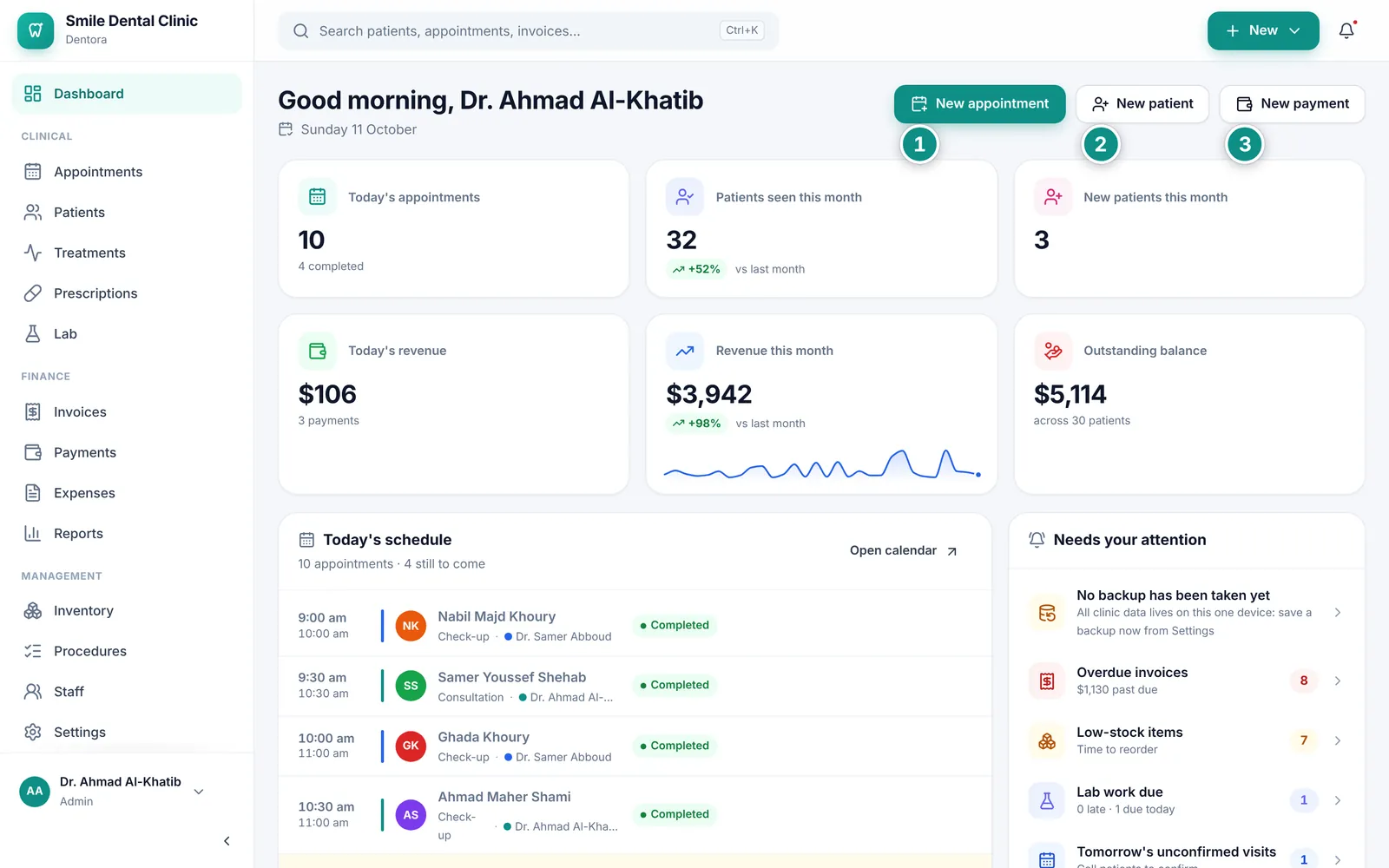
The dashboard of a working clinic: figure cards, today’s schedule and alertsEnlarge the picture
The dashboard in the middle of a working day.

Good to know

  • What you see follows your role: roles that may not handle invoices see no money cards, no revenue chart, no New payment button and no Overdue invoices alert, and receptionists do not get the Lab work due alert. See Roles and permissions.
  • While Dentora is read-only the figures stay visible, but the add buttons and the status buttons are disabled. See Licence.
  • Left open all day, the screen stays right: the Now line moves and the greeting and date update every minute.

The figure cards

  • Today's appointments: today’s appointments, not counting cancelled ones, and how many are completed.
  • Patients seen this month: how many patients came in this month so far, meaning they were checked in, started or completed.
  • New patients this month: files opened since the first of the month.
  • Today's revenue: the total of payments recorded today, and how many there were.
  • Revenue this month: the total of this month’s payments, with a small line of the last 30 days.
  • Outstanding balance: what patients still owe on unpaid and partially paid invoices, and how many patients that is.
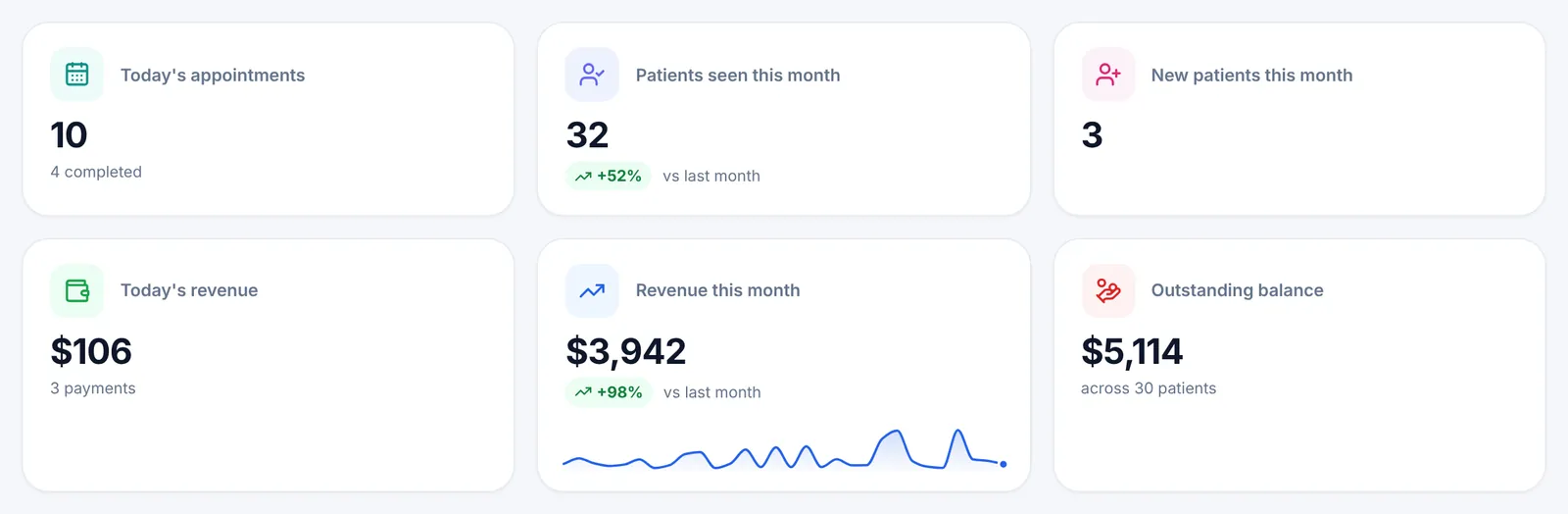
The six figure cards: today’s appointments, patients, revenue and outstanding balanceEnlarge the picture

Good to know

  • The green or red percentage under a figure compares this month so far with the same days of last month, next to vs last month.
  • Every card is a link: Today's appointments opens today’s calendar, Patients seen this month and New patients this month open the patient list, Today's revenue opens Payments, and Revenue this month and Outstanding balance open Reports, or Payments and Invoices for those who cannot see reports.
  • The three money cards show only for roles allowed to handle invoices.

Today’s schedule

Today's schedule lists today’s appointments in order: time, patient, type of visit, the doctor with their colour, and the status. A red line labelled Now separates what is past from what is coming.

Finished visits are dimmed, the visit in progress is highlighted, and the card’s heading shows how many appointments there are today and how many are still to come.

  1. When the patient arrives, click Check in on their row.
  2. When they go into the treatment room click Start, and at the end Complete.
  3. To confirm an appointment that is not confirmed yet, click Confirm.
  4. Click the patient’s name to open their file, or Open calendar to see the day on the Appointments page.
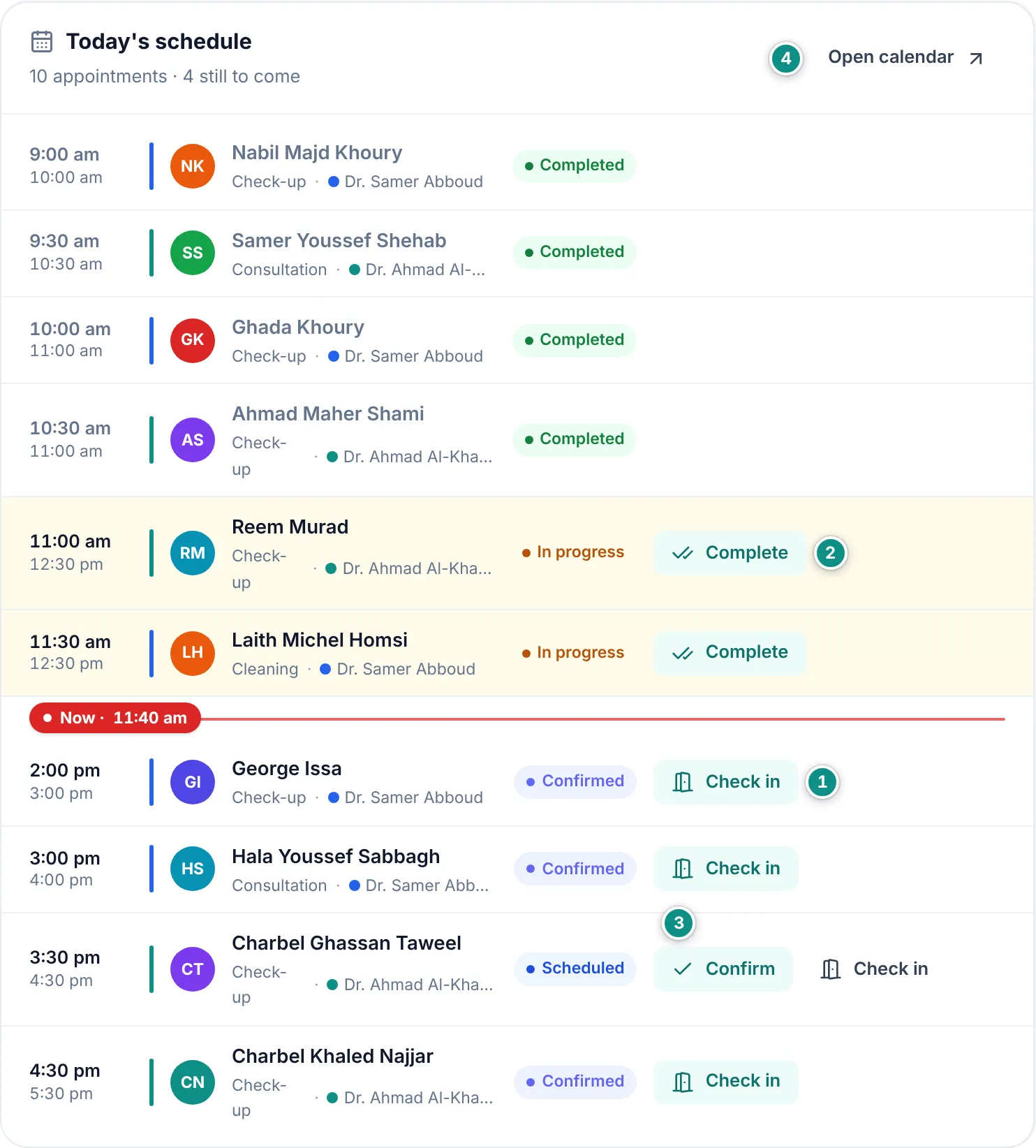
Today’s schedule with the Now line and the Check in, Start and Complete buttonsEnlarge the picture

Good to know

  • Each row only shows the buttons that fit its status: Scheduled → Confirm or Check in, Confirmed → Check in, Arrived → Start, In progress → Complete. On a phone, and on screens or windows up to about 1280 pixels wide, a Scheduled row shows only Confirm; Check in appears once it is confirmed.
  • To cancel an appointment or mark a no-show, open it from Appointments.
  • Each status change shows at once and is logged in Recent activity.
  • On a phone the status buttons sit under each row, easy to tap.

Needs your attention

The Needs your attention card gathers what you should follow up today, with a count for each kind. Click any row to go to its page:

Overdue invoices with the total due, Low-stock items (at or below their alert threshold, or out of stock), Lab work due (late or due today), and Tomorrow's unconfirmed visits so you can call the patients.

Once the clinic has its first patient, a backup reminder shows at the top when no backup was ever saved or the last one is 7 or more days old.
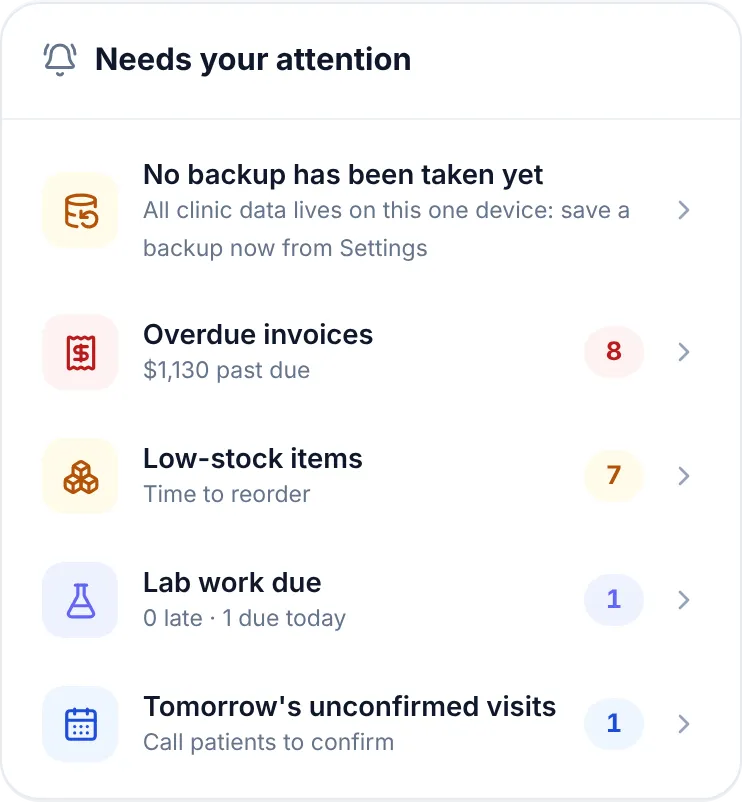
The Needs your attention card: backup, overdue invoices, stock, lab and tomorrow’s visitsEnlarge the picture

Good to know

  • When nothing needs attention, the card says All clear.
  • An invoice counts as overdue once its due date has passed or, without a due date, 30 days after it was issued.
  • The backup reminder takes the admin to the backup page. Everyone else is asked to tell the clinic admin. See Saving a backup.
  • The details of each alert, and the WhatsApp reminder buttons, are in the Notifications panel.

The charts

  • Revenue — last 30 days: payments day by day, with the total under the title. Hover over the chart, or touch it on a phone, to see any day’s amount.
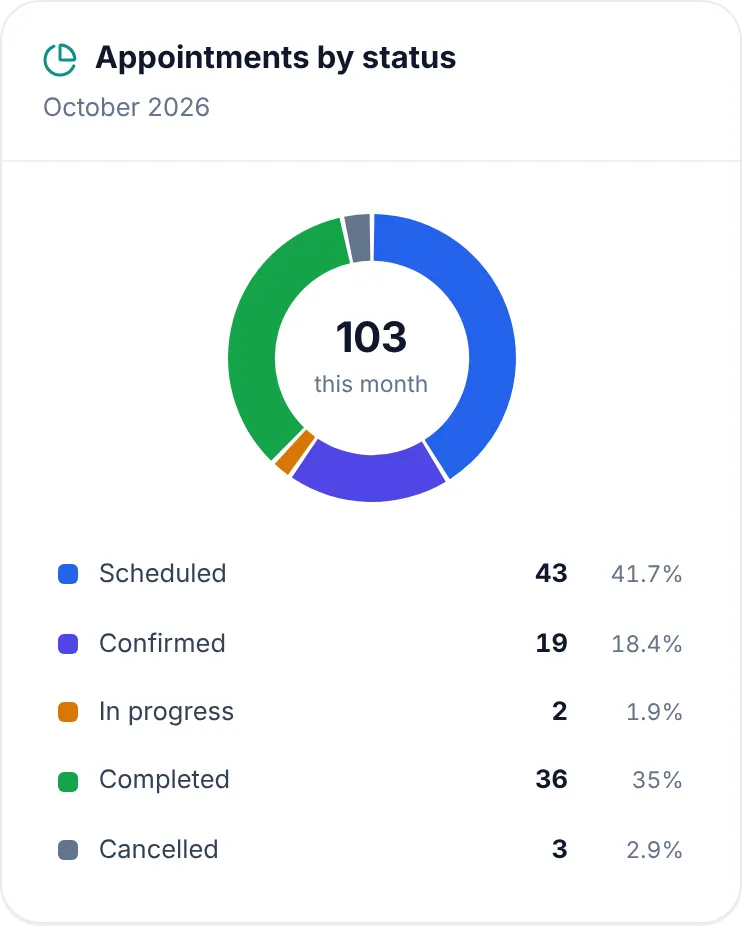
  • Appointments by status: this month’s appointments split by status, with each status’s count and share, and the total in the middle.
  • Top procedures: the procedures completed most often this month, with how many times each was done.
  1. To see revenue as figures, click the Show as table button in the corner of the revenue card; click it again to go back to the chart.
  2. Click Reports on the same card for a deeper look.
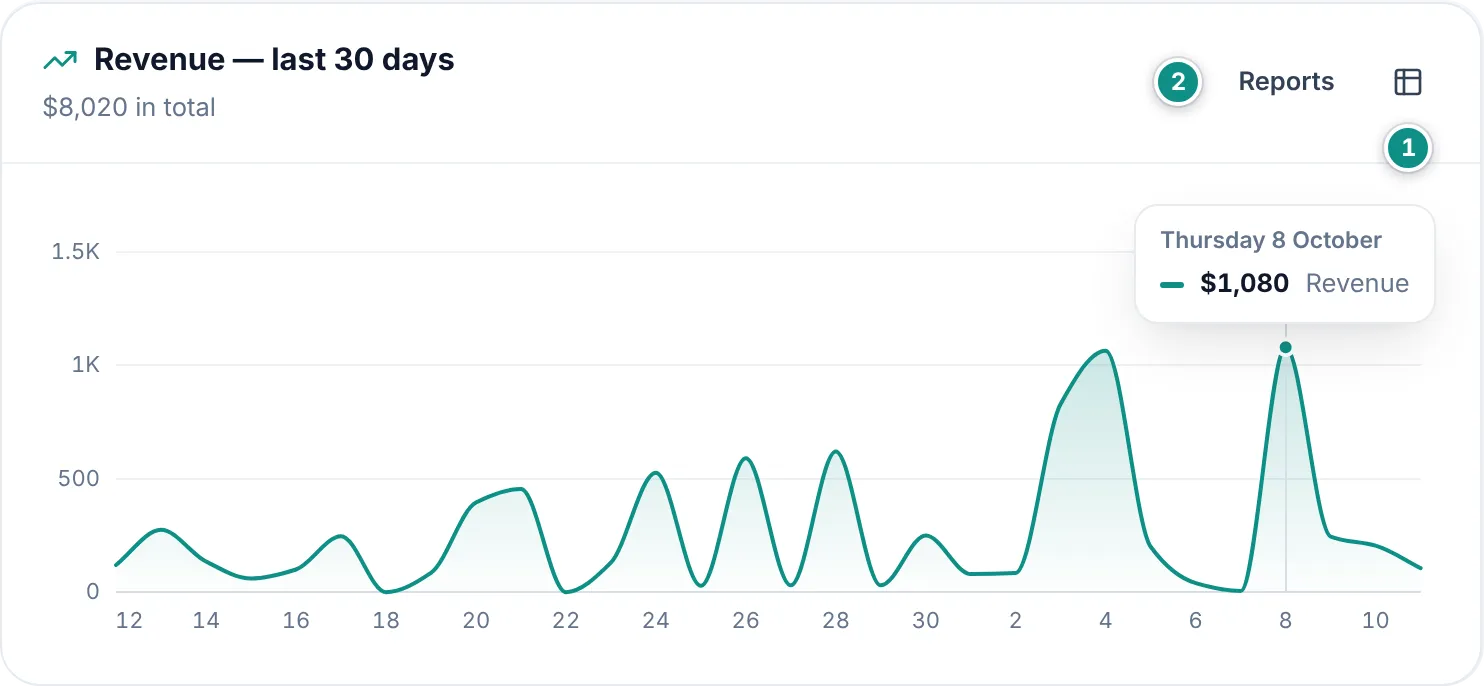
The revenue chart for the last 30 days with the Reports and table buttonsEnlarge the picture
This month’s appointments by status in a donut chartEnlarge the picture

Good to know

  • The revenue chart shows for roles allowed to handle invoices, and the Reports button for roles that can see reports; the button is hidden on phones.
  • Hover over a procedure, or touch it on a phone, to see its share of the total and, for roles allowed to handle invoices, its value.
  • For detailed figures over any period, see Reports.

Recent activity

Recent activity shows the last 12 actions in the clinic: an appointment booked, a status changed, a treatment done, a payment received, an invoice issued, a sign-in. Each one shows who did it and when.

  1. Click a row about a patient to open their file.
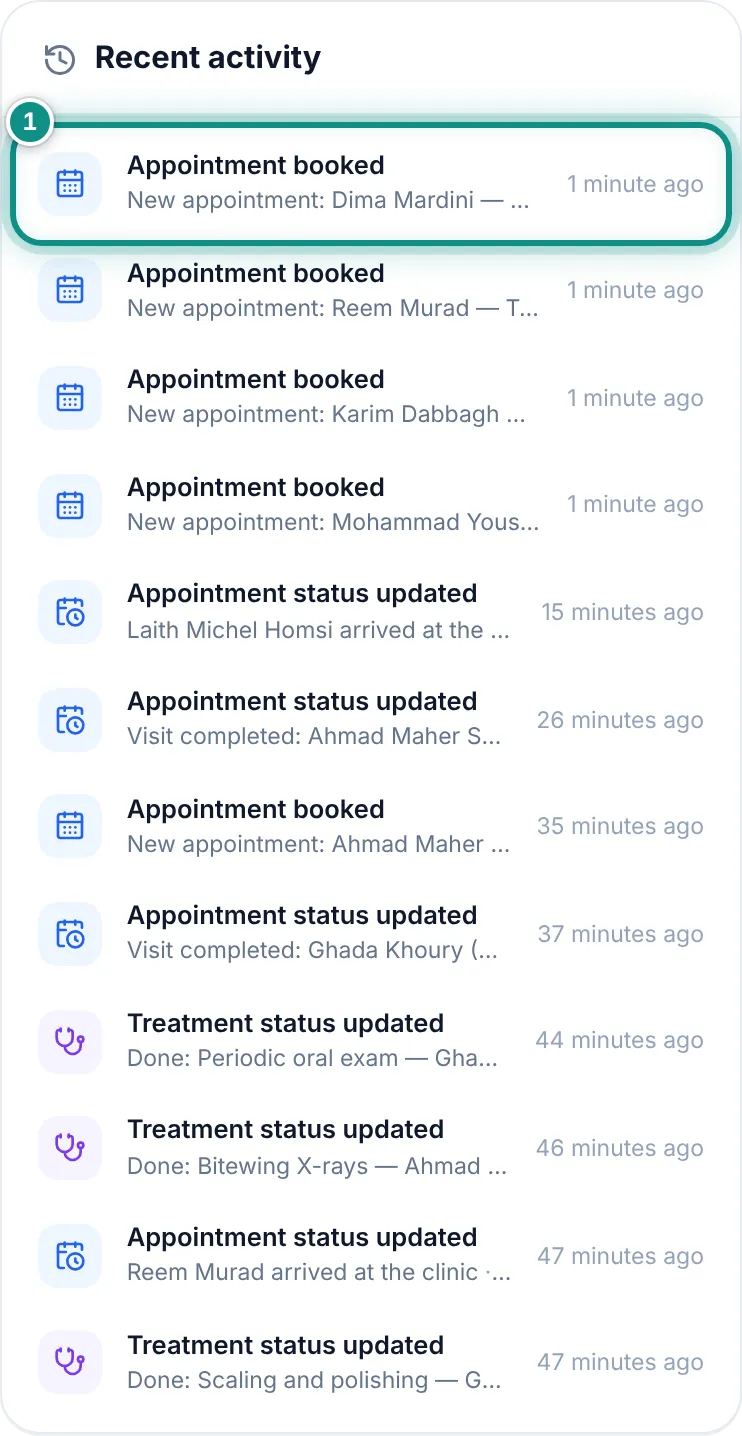
Recent activity in the clinic, with who did what and whenEnlarge the picture

Good to know

A quick way to see what the team did today without asking.

The dashboard on a phone

On a phone the figure cards sit in two columns, followed by the other cards: Today's schedule first, then the alerts, revenue, appointments by status, top procedures and finally recent activity. Scroll down to see them all.
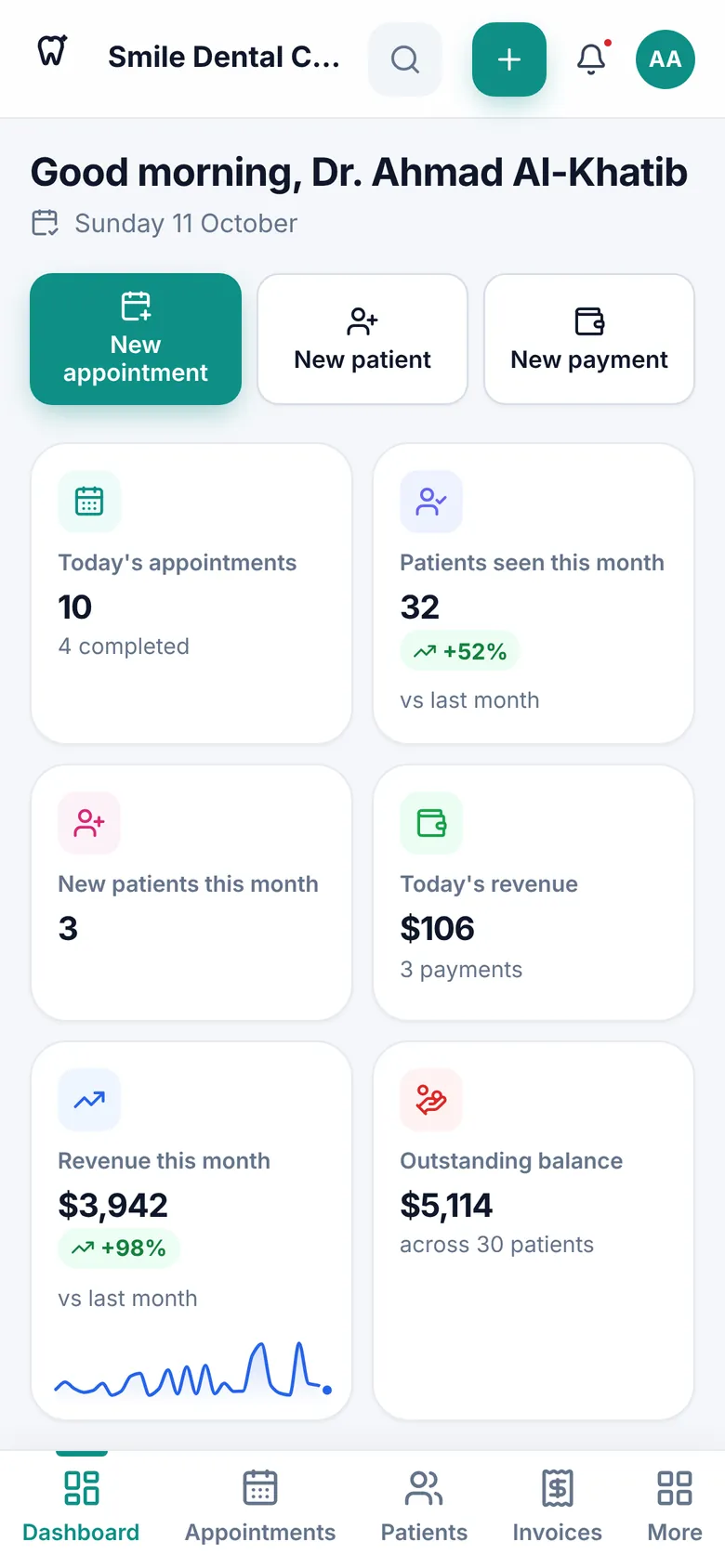
The dashboard on a phone: add buttons and figure cards in two columnsEnlarge the picture

Good to know

The three add buttons stay at the top of the page, across the width of the screen. See also On a phone or tablet.

Previous topicFinding your way aroundNext topicPatients

Need help?

If you did not find your answer here, message us on WhatsApp and we will help.

WhatsApp+963 996 489 504

On this page

  1. At a glance
  2. The figure cards
  3. Today’s schedule
  4. Needs your attention
  5. The charts
  6. Recent activity
  7. The dashboard on a phone

Back to top

All topics

  1. Getting started
  2. Finding your way around
  3. The dashboard
  4. Patients
  5. Dental chart
  6. Appointments
  7. Treatments and treatment plans
  8. Invoices and payments
  9. Prescriptions
  10. Dental lab
  11. Inventory
  12. Expenses
  13. Reports
  14. Settings
  15. Staff and permissions
  16. Backup and moving your clinic
  17. Licence and activation
  18. Questions and answers

© 2026 Dentora. All rights reserved.

HomeUser guideVideosActivate a licencePrivacy policyTerms of use