Prescriptions
Write a prescription in seconds from your own drug list with its usual doses, get warned at once when a drug clashes with the patient’s allergies, then print it on your letterhead or send it by WhatsApp.
Watch this topic on videoOn this page
The prescriptions page
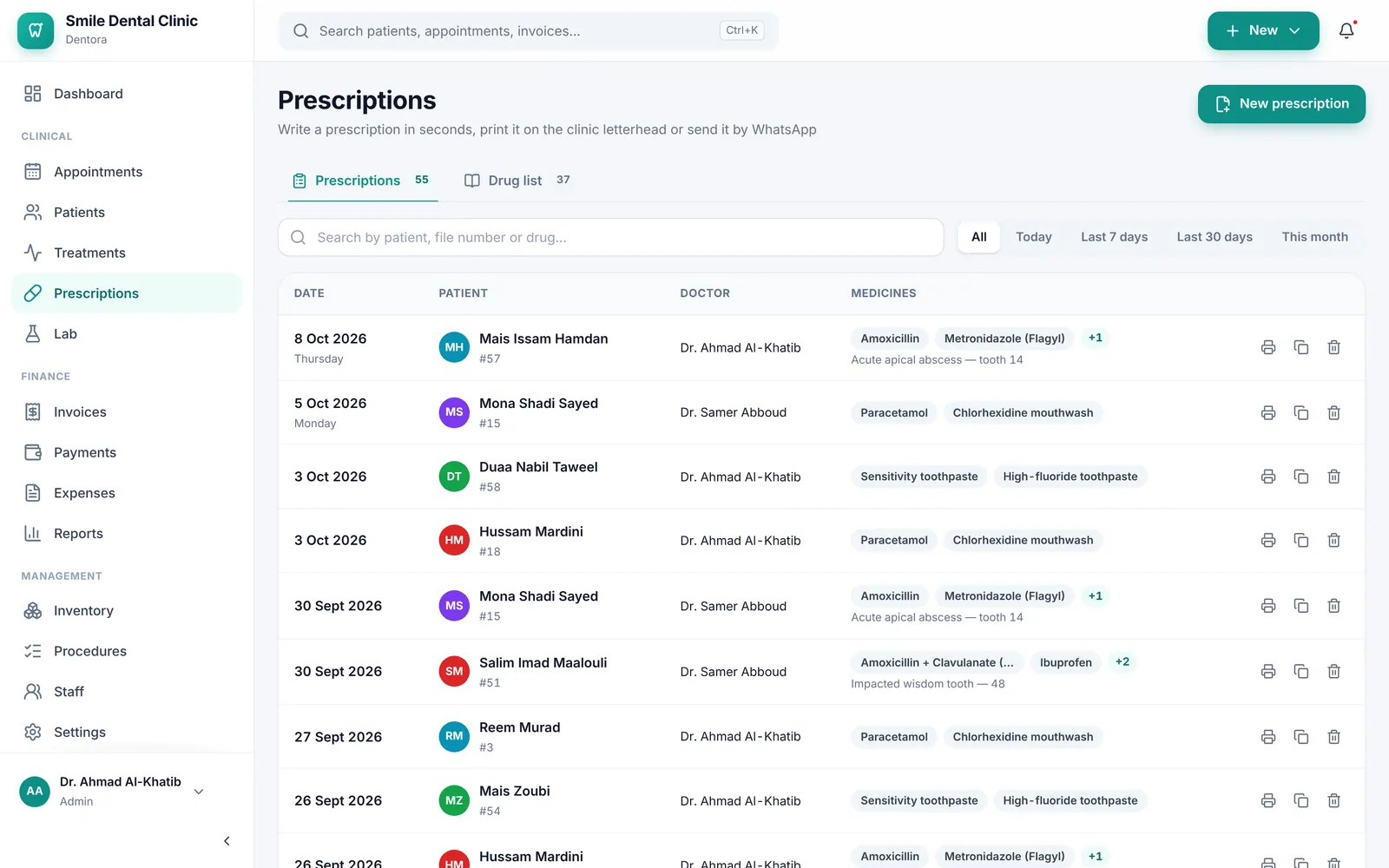
Open Prescriptions in the sidebar. The Prescriptions tab lists every prescription of the clinic, newest first: date, patient, doctor, medicines and diagnosis.
Search by patient name, file number, drug, diagnosis or prescription number, and pick the period: All, Today, Last 7 days, Last 30 days or This month.
Click any prescription to view and print it. Each row ends with three icon buttons: the printer (View & print), copy (Copy as new) and the bin (Delete).
Writing a prescription
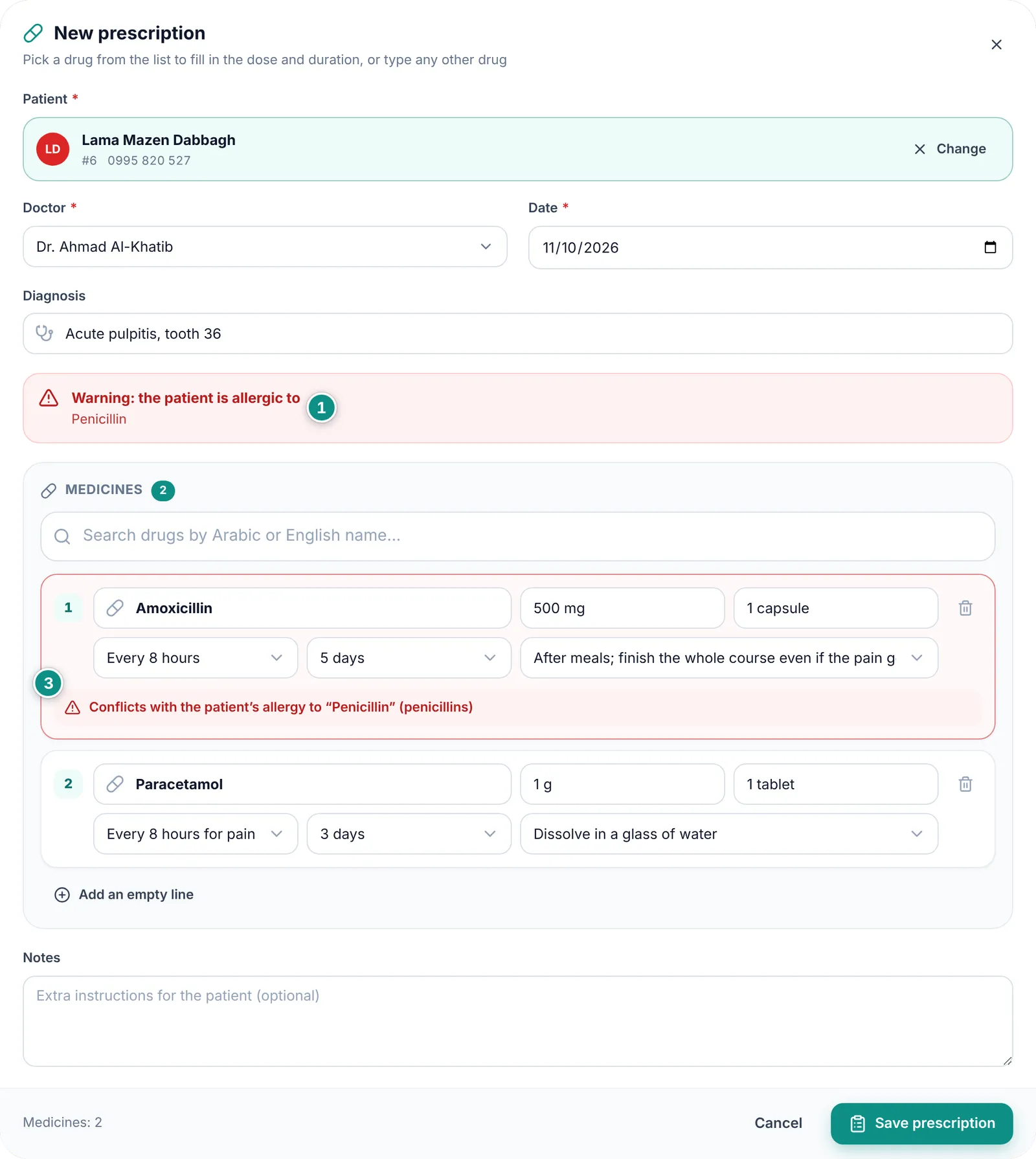
Pick a drug from your list and its dose, frequency, duration and instructions fill in by themselves; then adjust what this patient needs.
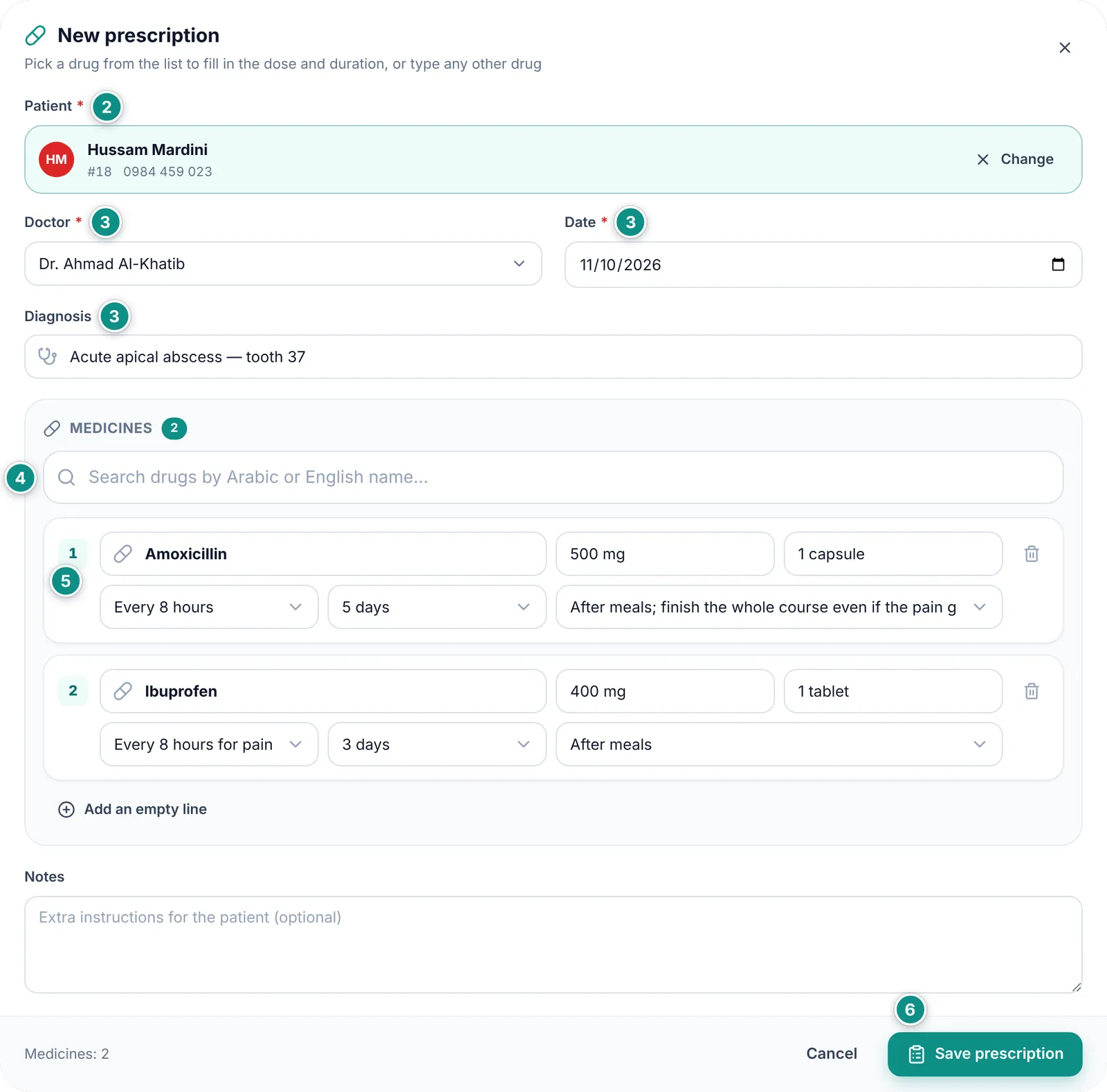
- Click New prescription on the Prescriptions page, or in the Prescriptions tab of the patient’s file.
- Search for the Patient by name, file number or phone and pick them.
- Check the Doctor and Date, and type a Diagnosis if you wish, such as “Acute pulpitis, tooth 36”.
- Click in the drug search box. Your clinic’s Most prescribed drugs come first. Type part of the name in Arabic or English, then click the drug or press Enter.
- The drug is added as a line with its Strength, Dose, Frequency, Duration and Instructions. Change any of them, or pick from the suggestions.
- Repeat for each medicine, add Notes for the patient if you wish, then click Save prescription. The prescription opens, ready to print.
Allergy warnings
Dentora compares each drug’s name with the allergies recorded in the patient’s file, and warns you when it recognises a clash.
If the file records an allergy, a red “Warning: the patient is allergic to” bar sits above the medicines, with what was recorded.
- Read the red bar above the medicines before choosing them.
- In the search list, a warning sign shows next to any drug that clashes with the allergy.
- If you add it, its line turns red and the reason shows under it: the same drug, a drug of the same family, or a possible cross-reaction.
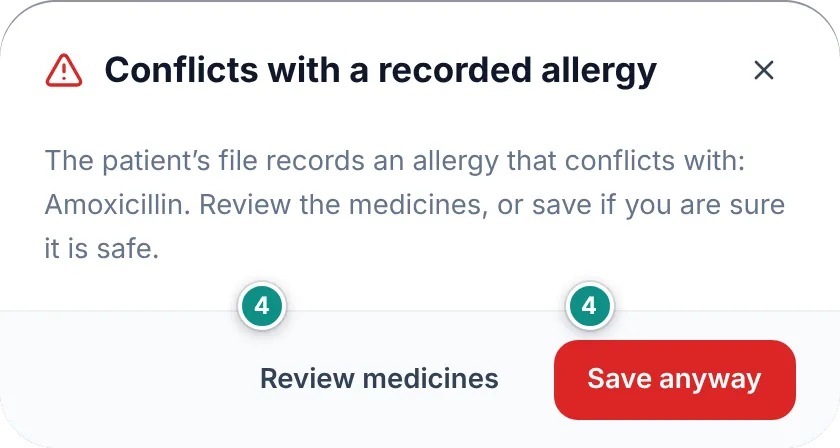
- When you save, Dentora asks once more. Click Review medicines to change the drug, or Save anyway if you are sure it is safe.
Printing and sending a prescription
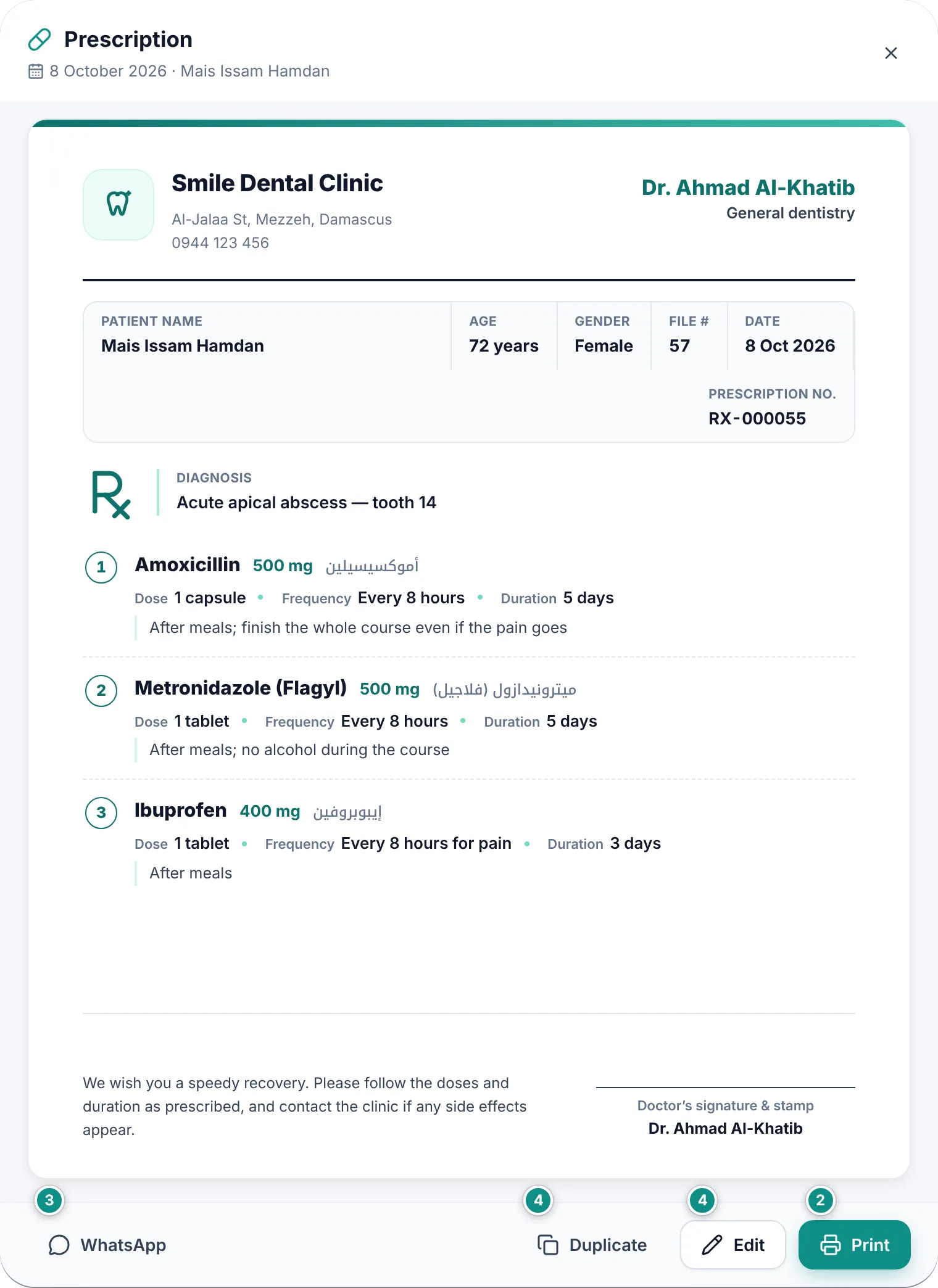
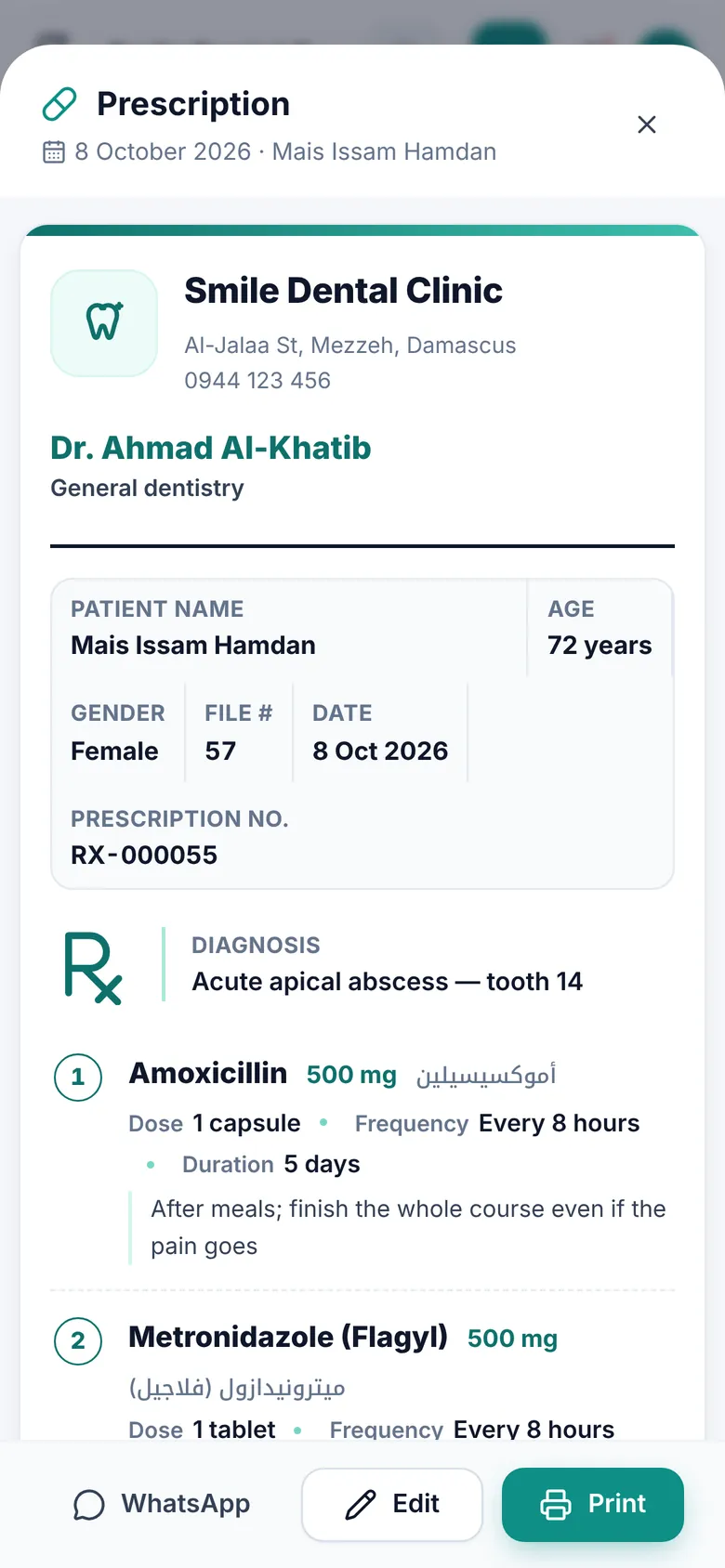
The prescription prints on the clinic letterhead with the doctor’s name and specialty, the patient’s name, age, gender and file number, then the date, prescription number, diagnosis and medicines with their doses, and room at the bottom for the doctor’s signature and stamp.
- Open the prescription by clicking it in the list; it also opens right after you save.
- Click Print and choose a printer or save as PDF.
- Or click WhatsApp to send the prescription to the patient as a text message.
- To change it click Edit. To write a similar one at a new visit, click Duplicate.
Prescriptions in the patient file
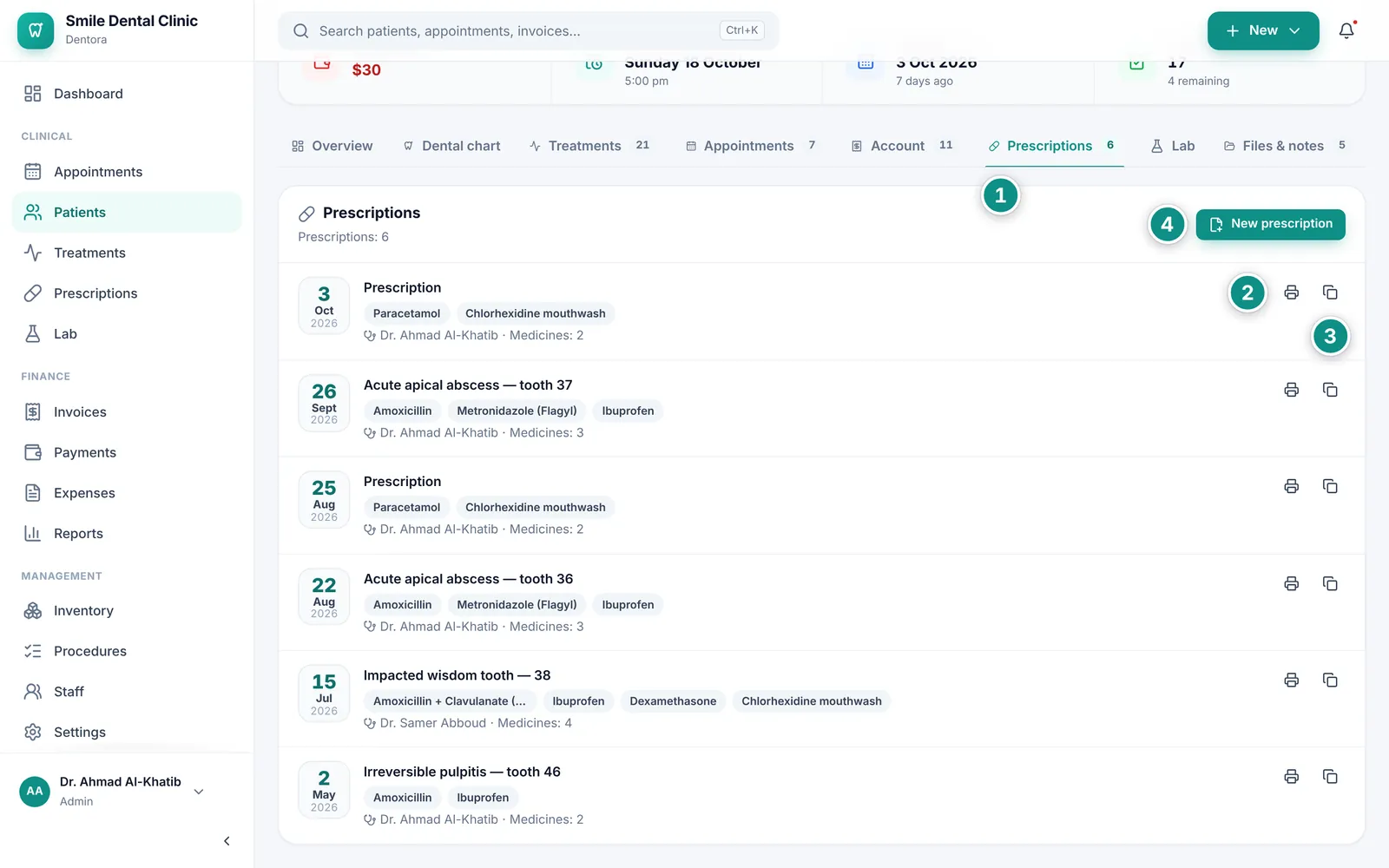
The Prescriptions tab of the patient’s file gathers their prescriptions, newest first. Each shows its date, diagnosis, medicine names, doctor and number of medicines.
- Open the patient’s file, then the Prescriptions tab.
- Click a prescription to view it, or the printer button next to it.
- Click the copy button to write a new prescription with the same medicines.
- Click New prescription to write one with the patient already set.
The drug list
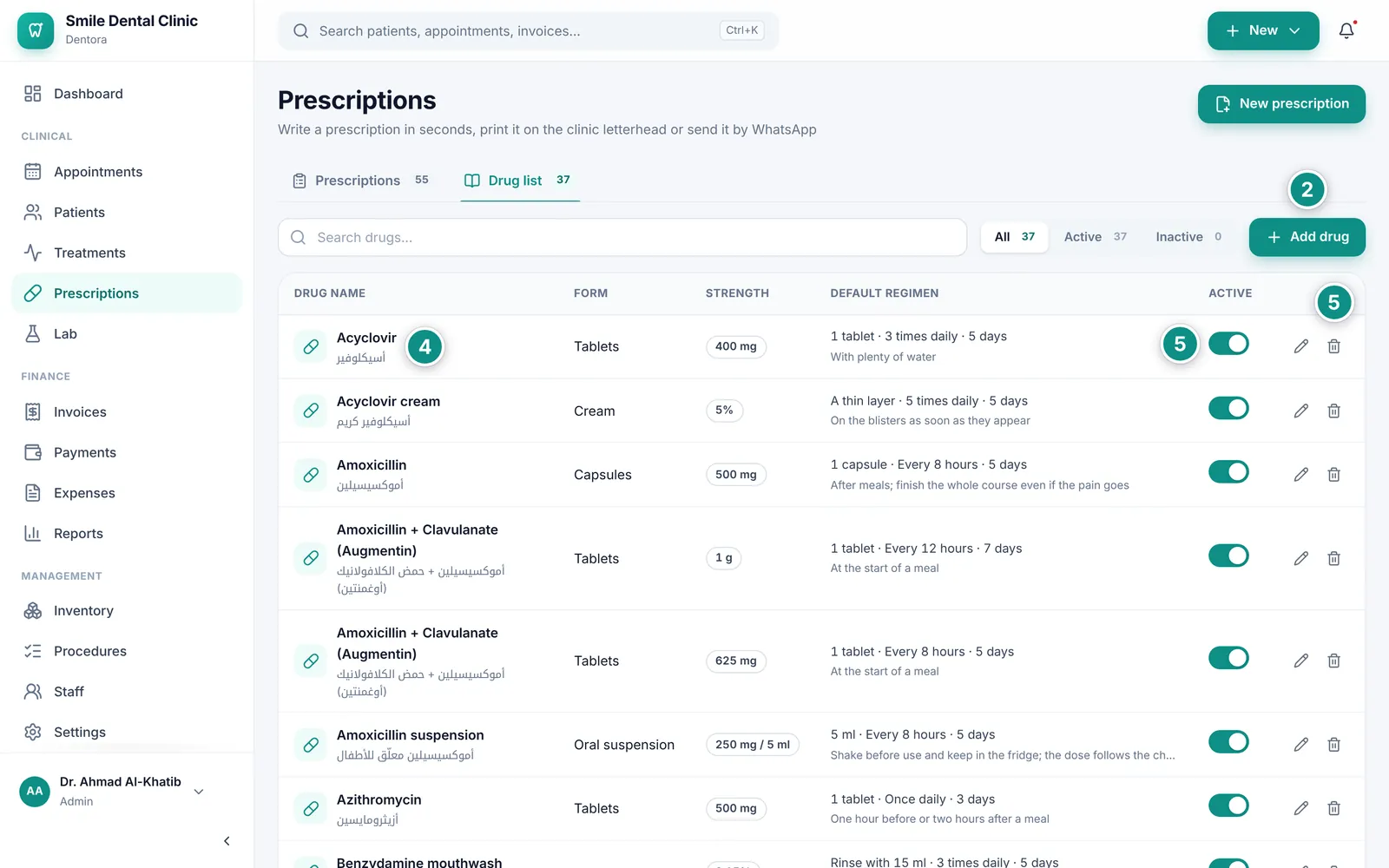
The drug list is what the prescription’s search box offers. Each drug has its Arabic and English names, form, strength and default regimen.
When Dentora is set up, a ready list of 37 drugs dentists prescribe most is loaded, with their usual doses, in the clinic’s language.
- Open Prescriptions, then the Drug list tab.
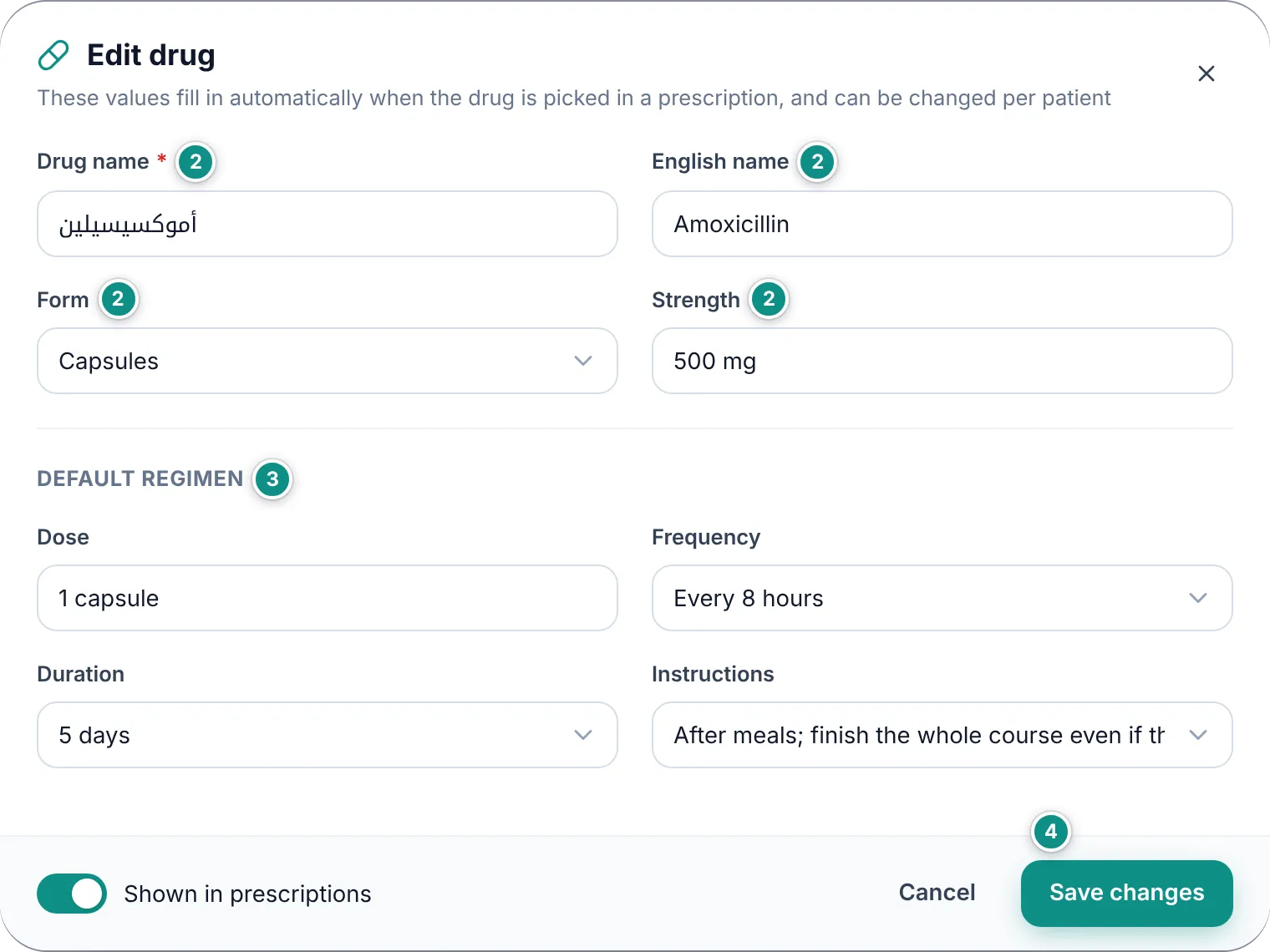
- To add a drug click Add drug, and type the Drug name, English name, Form and Strength.
- Under Default regimen type the Dose and choose the Frequency, Duration and Instructions, then click Add drug.
- To edit a drug click its row, then Save changes.
- To hide a drug from new prescriptions, turn off the Active switch on its row. To delete it for good, click the bin; there is no bin on a phone, so delete from a computer.