Licence and activation
A 7-day trial with every feature, then activation for one device with a licence key (online, once) or a code made for your device number (no internet). What is sent and what is not, and what happens when the trial or the licence ends.
Watch this topic on videoOn this page
The trial and what comes after
The first time Dentora opens, a free 7-day trial starts with every feature, with no sign-up, no account and no internet. A yellow bar at the top shows the days left and an Activate now button that opens the Licence screen.
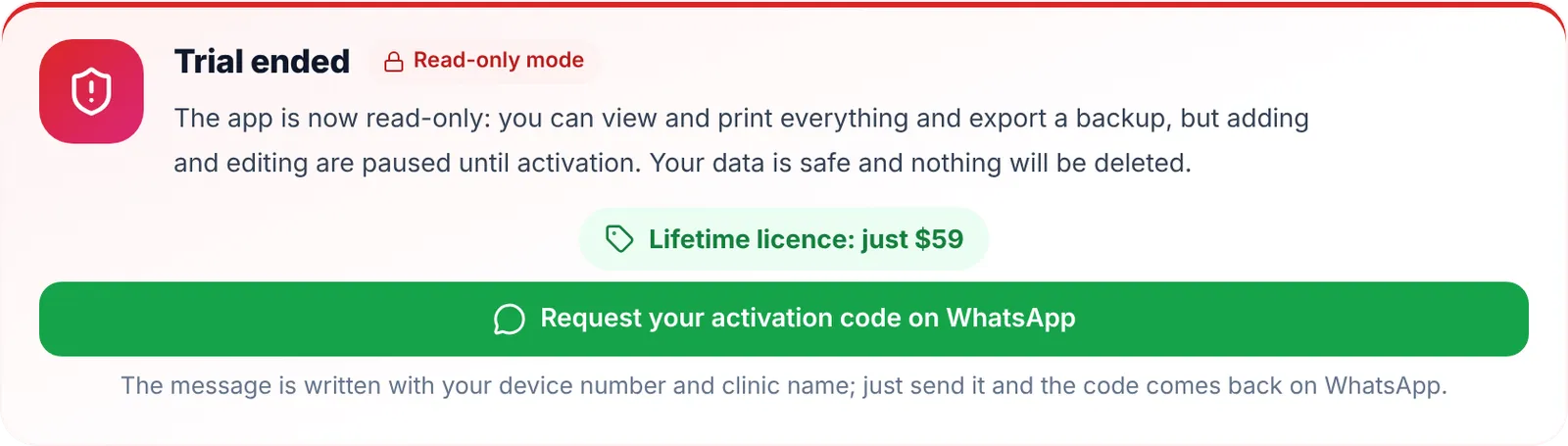
After the seventh day Dentora goes into Read-only mode: you still open every file, appointment and invoice, print them and save a backup, but adding, editing and deleting stop until you activate. The bar turns red: “The trial has ended. Activate to keep working.”
Nothing you entered is deleted: the moment you activate, everything is back as it was, on Windows and on Android. You can activate on any day, during the trial or after it.
The Licence screen and your device number
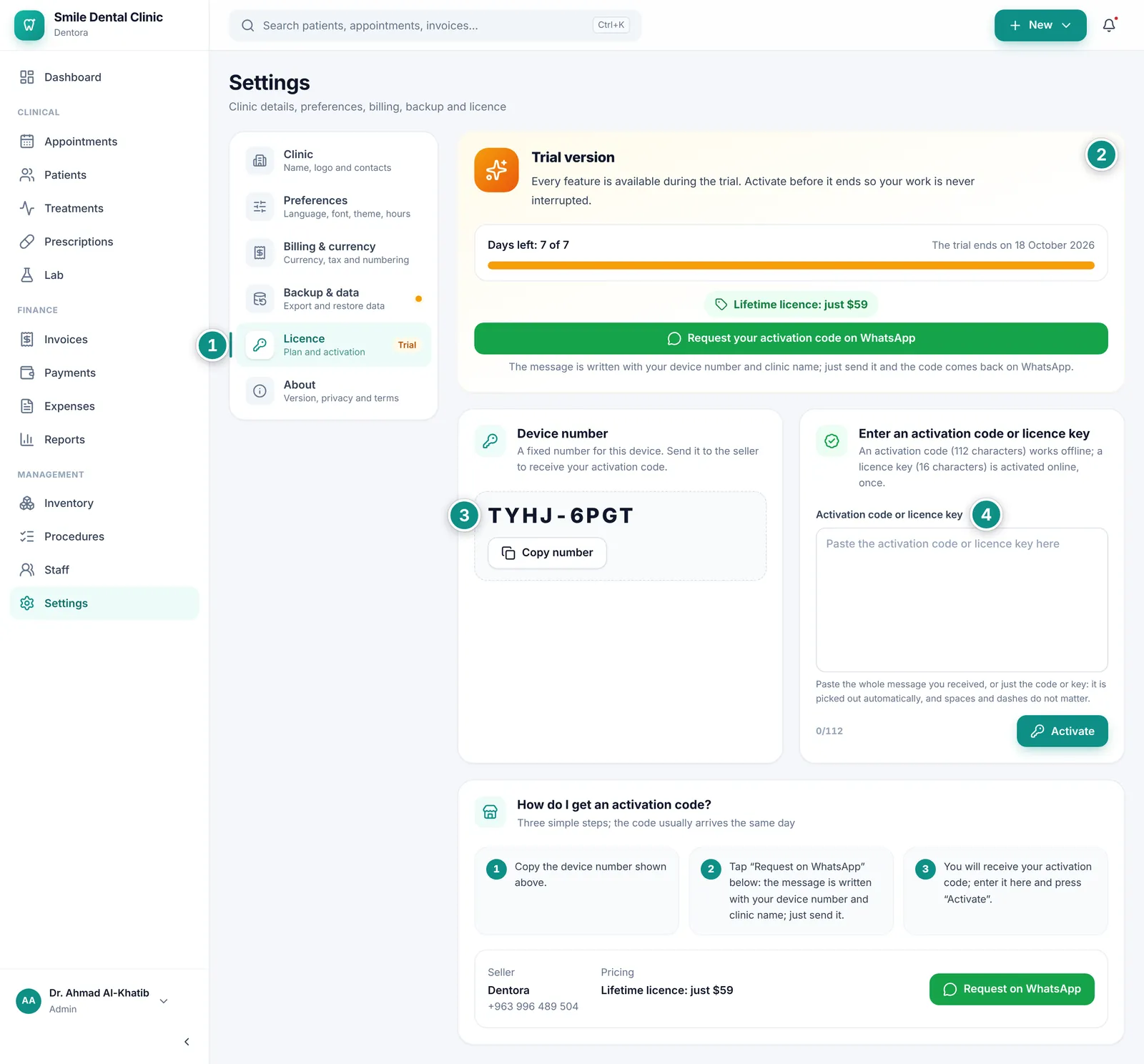
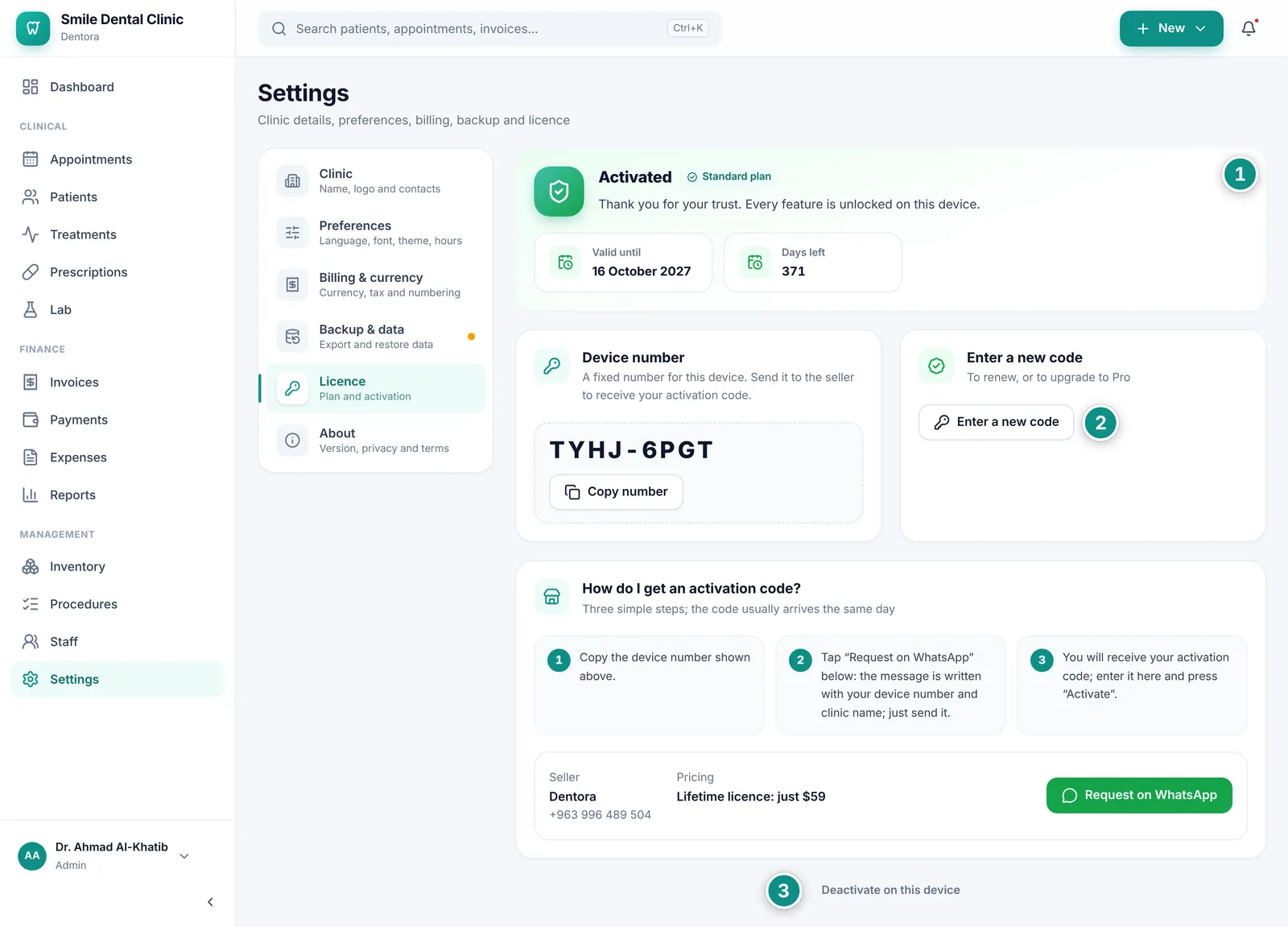
Everything about the licence is on one screen: its state, your device number, the activation field and how to buy.
- Open Settings from the sidebar (on a phone: More → Settings), then choose Licence. Or click Activate now in the yellow bar.
- The first card shows the state: Trial version with the Days left and the trial’s end date, Activated with the plan, or Trial ended with a Read-only mode badge.
- The Device number card shows a fixed 8-character number of this device, such as 7KQ4-M2XD. Click Copy number to copy it: you need it when asking for a code or activating on the website.
- The Enter an activation code or licence key card has one field that takes either, and the Activate button.
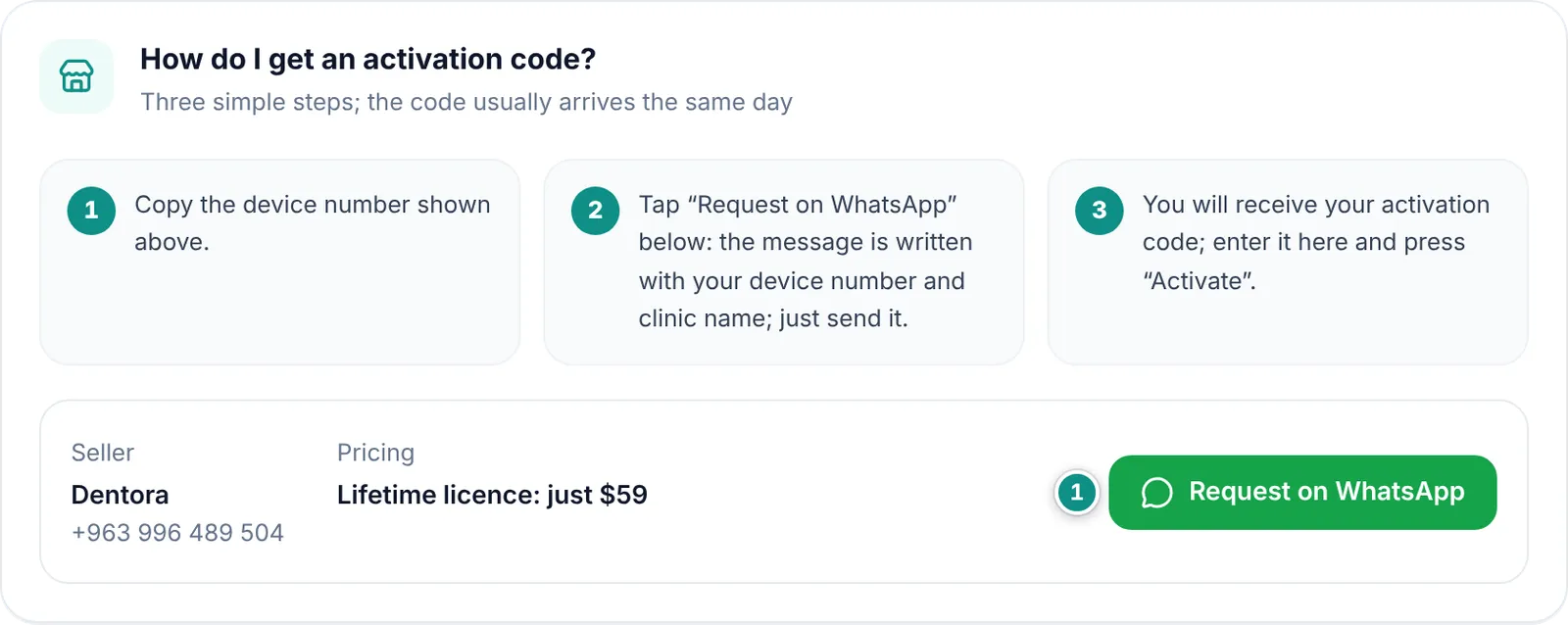
- At the bottom, the How do I get an activation code? card lists the three steps, the seller’s WhatsApp number and the price, with a Request on WhatsApp button.
Activating with a licence key inside Dentora
A licence key is 16 letters and digits written XXXX-XXXX-XXXX-XXXX, which the seller sells without knowing your device number. Dentora turns it into an activation code for your device over the internet, once only, and then works offline as usual. This needs Dentora 1.1.0 or later; with 1.0.0 use the activation page on the website.
- Connect this device to the internet, for this once.
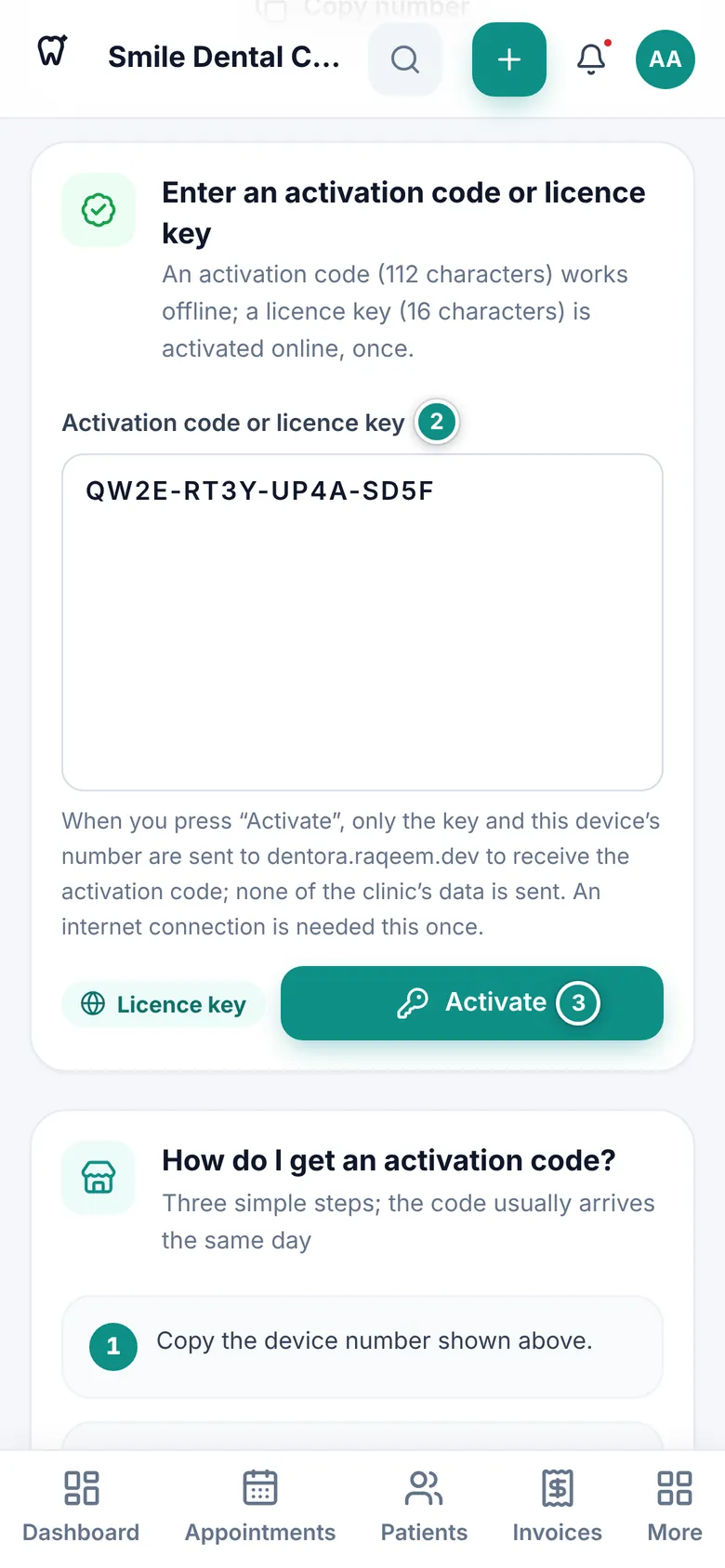
- Open Settings → Licence and paste the seller’s message as it came, or just the key, into Activation code or licence key. Dentora picks the key out of the message, and a Licence key badge appears under the field with a note on what will be sent.
- Click Activate. “Contacting the activation server…” shows for a few seconds, then Activated successfully with the plan’s name, and the yellow bar disappears.
Activating with a code made for your device number
The second way needs no internet on the clinic’s device: you send the device number to the seller, who issues a 112-character activation code for that device, and you paste it into the same field.
- On the Licence screen click Request your activation code on WhatsApp (the green button in the first card) or Request on WhatsApp further down: WhatsApp opens on the seller’s chat with the message written, with your clinic’s name and device number; send it. Or copy the Device number with Copy number and send it any way you like.
- A message with your activation code comes back. Paste the whole message, or the code alone, into Activation code or licence key; the counter under the field shows how many of the 112 characters are in.
- Click Activate. Dentora checks the code on the device itself, with no internet, and shows Activated successfully.
Activating on the website
When Dentora is on a device with no internet, or it is version 1.0.0, which takes no key in the field, turn the key into a code on the activation page of the Dentora website, on any device that is online, such as your phone.
- Copy the Device number from the Licence screen.
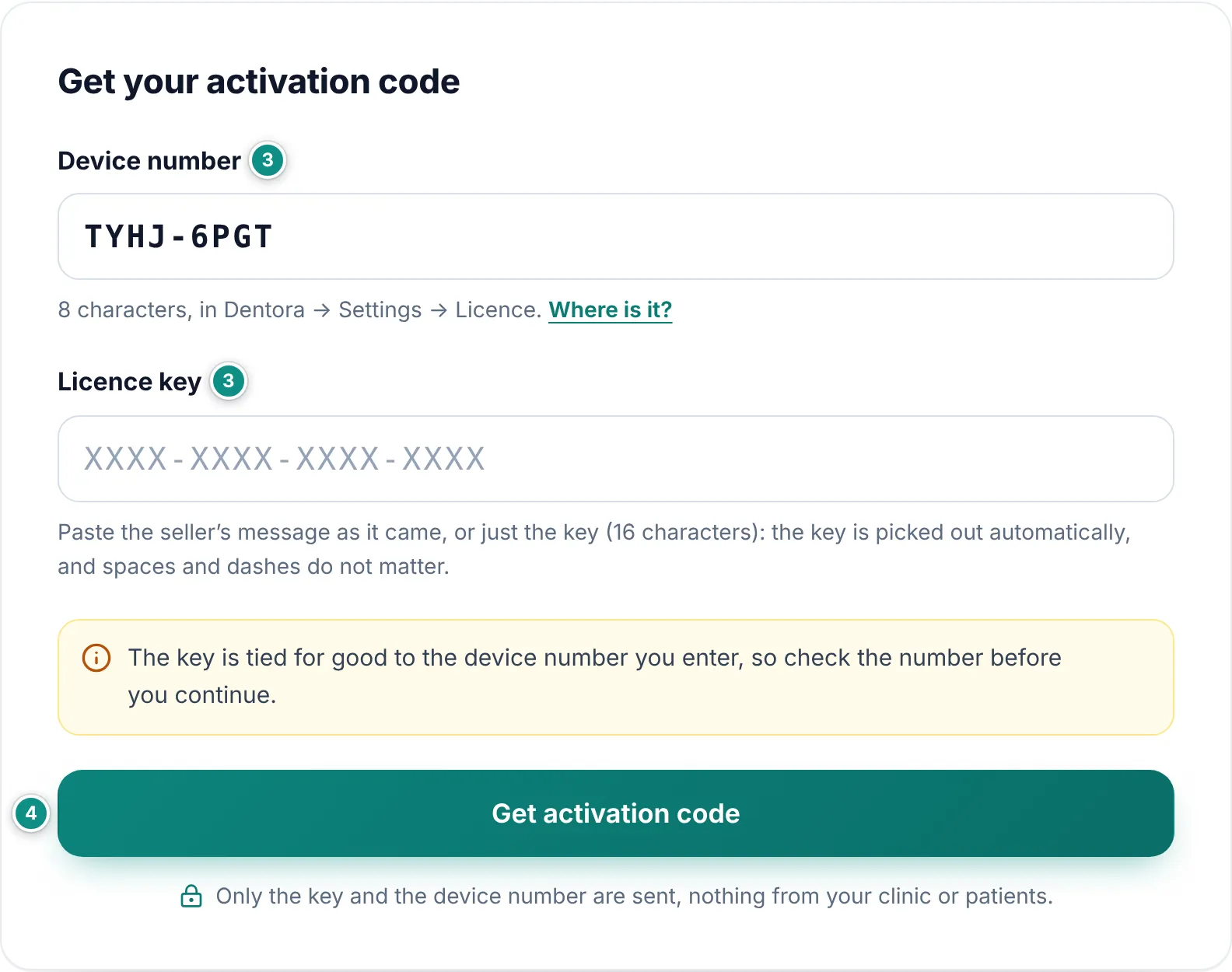
- Open dentora.raqeem.dev/en/activate in a browser (Arabic: dentora.raqeem.dev/activate). If you open it with Activate in the browser inside Dentora, your device number is already filled in.
- Type the Device number and the Licence key (or paste the seller’s whole message), and check the device number: the key is tied to it for good.
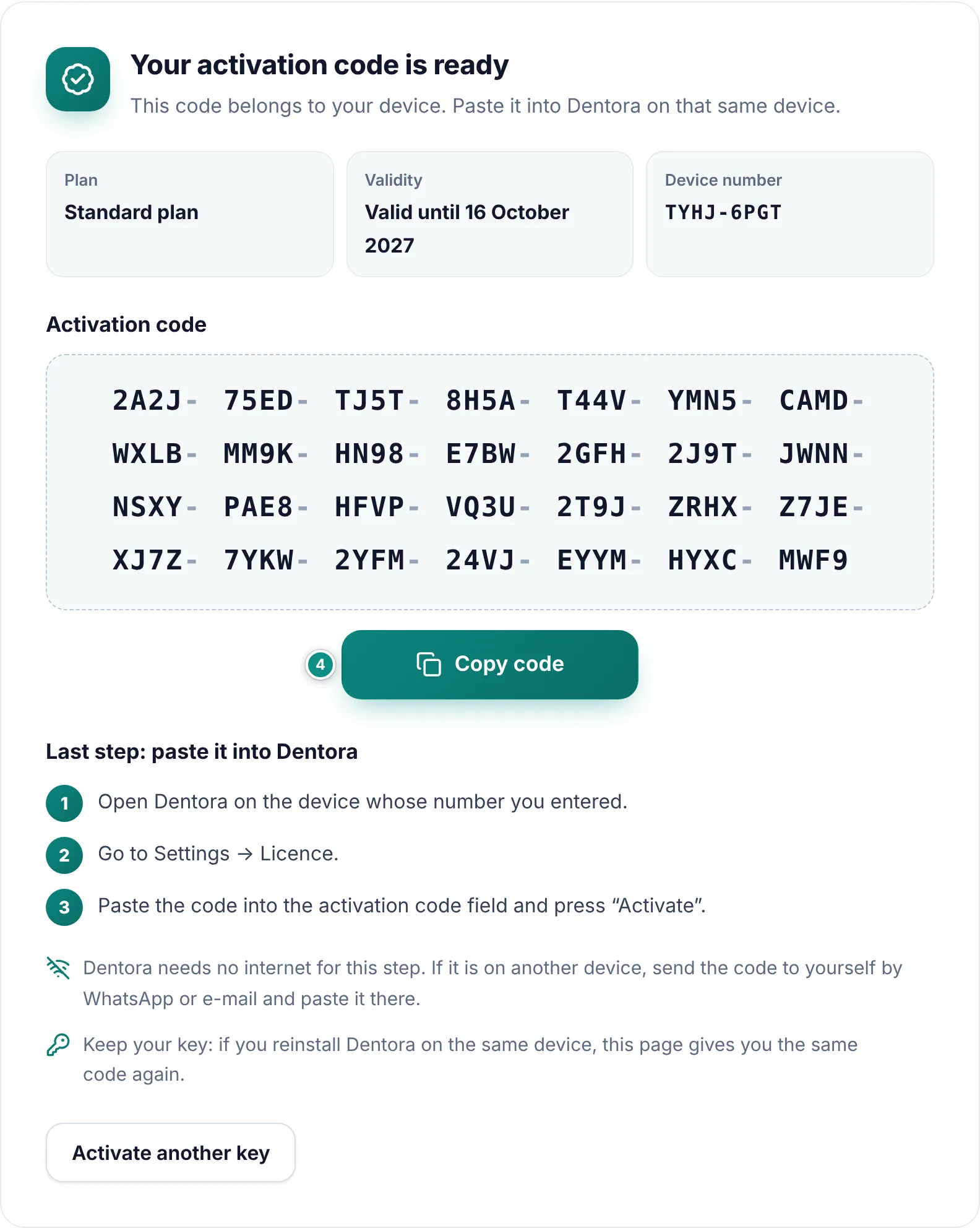
- Click Get activation code. The code appears large, with the plan and validity; click Copy code.
- Back in Dentora → Settings → Licence, paste the code into the field and click Activate. Dentora needs no internet for this step; if the page is on another device, send the code to yourself by WhatsApp or email.
When what you entered is not accepted
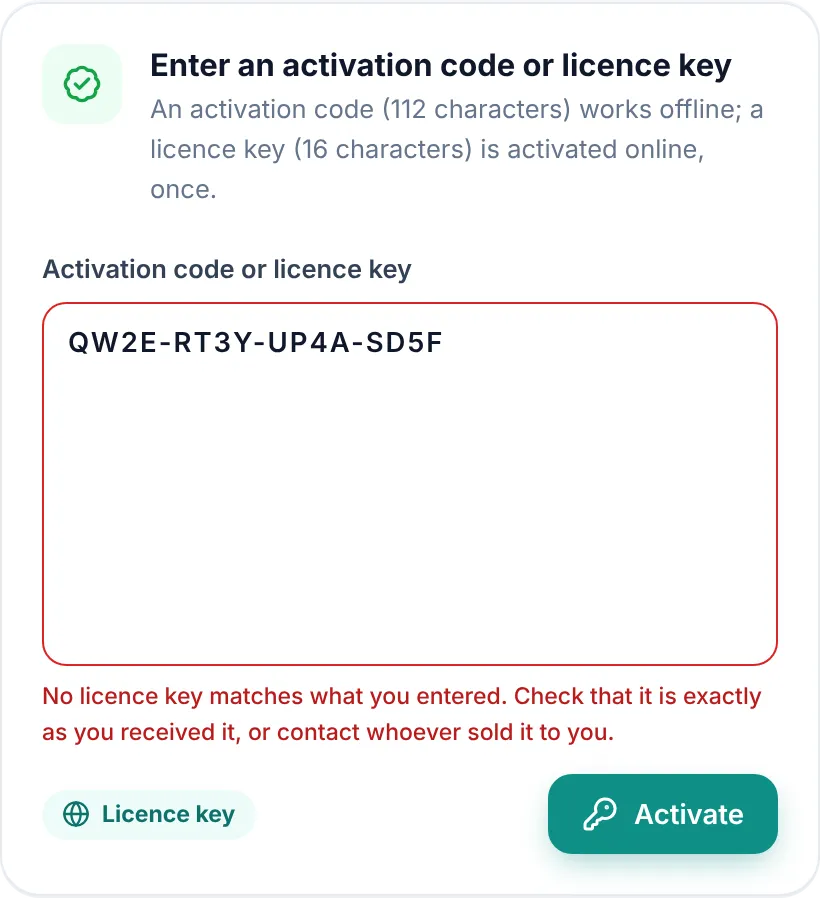
The sentence shows in red under the field, and nothing changes in Dentora or in your data. What each one means and what to do:
- “What you entered is incomplete or has a typo…” or “That key is incomplete or has a typo…”: paste the message again exactly as it came. A code has 112 characters and a key 16, and neither holds 0, O, 1 or I.
- “This code was issued for another device…”: the code does not match this device’s number. Send this device’s number to the seller.
- “This code has expired…”: the code’s last day has passed; a new code is needed.
- “This is a PIN reset code…”: it goes in on the sign-in screen under Forgot your PIN?, not here.
- “Could not reach the activation server…”: no internet on the device, or a very slow connection (Dentora waits 20 seconds). Check the connection and try again, or click Activate in the browser.
- “The activation server could not complete the request right now…”: a temporary fault on the server. Try again shortly.
- “No licence key matches what you entered…”: the key is unknown. Compare it character by character with the seller’s message.
- “This key is already activated on another device…”: the key was used on a device other than this one. To move the licence to this device, contact the seller.
- “This key has been cancelled…”: the seller cancelled or refunded the key.
- “This key can no longer be used…”: its activation deadline has passed, or the licence it gave this device has ended. Ask for a new key.
- “Too many failed attempts from this connection…”: wait the minutes it names, then try again.
- “The activation server did not accept this device’s number…” or “The activation code sent by the server did not pass Dentora’s own check…”: both rare. Close Dentora, open it again and try once more; if it happens again, contact the seller.
- “The text holds more than one licence key…”: keep one key in the field.
After activation: plan, validity and renewal
Once activated, the first card says Activated with the plan badge as the seller sold it: Standard plan or Pro plan.
Under it comes the validity: Lifetime licence and “Never expires”, or Valid until with the last day and the Days left. A one- or two-year licence bought as a key counts from the day it was activated; a code made for your device ends on the day the seller chose.
- Thirty days before the licence ends, the card warns “Your licence ends on … Renew early to avoid any interruption.” Ask the seller for a new code or key.
- To renew or upgrade, click Enter a new code: the field comes back. Paste the new code or key and click Activate, or Cancel to leave things as they are.
- To free this device, click Deactivate on this device at the bottom of the screen (admin only) and confirm with Deactivate: the code is removed from the device and Dentora goes back to the trial, or to read-only mode if the trial is over. Keep the code to activate again later.
What the licence covers: one device
A licence, code or key, is for one device with one device number. Dentora does not sync devices, so a clinic that works on a computer and a phone needs a licence for each.
- A new device: a new device has a new device number, so your old code does not work on it, and a used key is refused with “This key is already activated on another device”. Move your data with a backup, then contact the seller to move the licence. See Moving the clinic to a new device.
- Reinstalling on the same device: on Windows your data and the activation stay as they are through an update or a reinstall. On Android, uninstalling the app erases everything, the activation included: after installing again, restore your backup, then paste the seller’s message (the code) again, or enter your key, which gives the same code.
- Restoring and erasing: a backup does not carry the activation, and neither a restore nor Erase all data removes it: the activation stays on the device.
What is sent to the internet, and what is not
Dentora never sends clinic or patient data anywhere. The only time it contacts a server is when you activate a licence key: it then sends the key and the device number (a number derived from the device, not from your data) to dentora.raqeem.dev, once, to receive the activation code. The activation page on the website receives the same two values.
The server keeps, with the sale record, the device number the key was tied to, the code it issued and the activation time, for as long as that sale record is kept: it is the proof the key was used, and what refuses it on a second device. It records the address of a failed attempt, on its own, to count attempts for 15 minutes and stop guessing, and that entry is deleted with the next activation request after that.
An activation code made for your device number needs no connection at all: Dentora checks it on the device itself.
A copy installed from Google Play shows no price, no WhatsApp request button and no Activate in the browser button, and its buying card says: send the device number with the clinic name to whoever sold you the Dentora licence. The code and key field and the website page work in it like anywhere else.