Questions and answers
The questions clinics ask most, about getting started, data, money, printing and the licence, and fixes for the usual problems, each with a link to its full explanation in the guide.
On this page
Getting started
Does Dentora need the internet? Not for daily work: patients, appointments, invoices and printing all live on the device. You need the internet to download Dentora, once if you activate it with a licence key, and when you send a WhatsApp message (Dentora opens WhatsApp with the message written). See Before you start and Activating with a licence key.
Which devices does it run on? Does it work on a Mac or an iPhone? It runs on a Windows 10 or 11 computer (64-bit) and on an Android 7.0 or later phone or tablet. There is no Mac, iPhone or iPad version. See Installing on Windows and Installing on Android.
Can I work on the computer and the phone with the same data? Dentora does not sync devices: each device has its own database, and a backup moves data rather than merging it. Choose one main device for daily work, and move the clinic with a backup file when you change device. Each device also needs its own licence. See Moving the clinic to a new device and One device.
I want to try the app before entering my data. How? The admin can load a complete demo clinic from Settings → Backup & data → Load demo data while the clinic has fewer than three patients. Demo data cannot be removed on its own, only by erasing all data, so try it before real work starts. See Demo data and erasing everything.
Does it work in English? Yes. In Settings → Preferences → Interface language choose English: screens and printouts switch at once for everyone (the admin changes it). See Language, month names, font and appearance.
Your data and backups
Where is my data kept? Is it online? On your device alone, and it is never sent to a server. That is why a backup is your only second copy: keep it off the device. See Why backups matter and What is sent to the internet?.
How often should I back up, and where do I keep the file? At least weekly, ideally at the end of every working day, from Settings → Backup & data → Export backup. Put the file on a USB stick or in Google Drive, or send it to yourself, and protect it with a password. Dentora reminds you after 7 days without a backup, and the backup holds everything, photos and X-rays included. See Saving a backup and Where to keep your backups.
I changed my phone or uninstalled the app and my data is gone. How do I get it back? On Android, uninstalling the app, or “Clear storage” in the app’s info, erases all clinic data, and Google’s automatic backup does not carry it. The only way back is a backup file you saved earlier: restore it from the setup wizard’s first screen. To update, install the new file over the app without uninstalling it. See Restoring instead of setting up and Installing on Android.
How do I move the clinic to a new computer? Save a fresh backup on the old device, install Dentora on the new one, choose Restore your data from a backup on the wizard’s first screen, then sign in with your usual name and PIN. The new device has a new device number, so contact the seller to move the licence. See Moving the clinic to a new device and One device.
I deleted a patient or an invoice by mistake. Can I undo it? There is no undo for deleting; what comes back is what the last backup holds, and a restore replaces all data with the backup’s. So archive a patient file instead of deleting it; Dentora never deletes a file with invoices or payments anyway, and of invoices only drafts can be deleted. See Archiving and deleting and Restoring a backup.
Money and invoices
How do I change the currency? Do old amounts change? In Settings → Billing & currency choose the Clinic currency and the decimals. Amounts already recorded are not converted; only the symbol shown changes, so pick your currency before the first invoice. See Currency and how amounts look.
The suggested prices are in dollars. How do I adjust them all at once? Open Procedures and click Adjust prices: an increase or decrease, by percentage or fixed amount with rounding, for one category or all, with a preview before applying. With the Syrian pound or a currency you typed in yourself, prices stay as dollar figures until you adjust them. See Procedures and prices.
How do I give money back to a patient? On the invoice page open the ⋮ menu and choose Refund, or turn on the refund option in the payment window. A refund prints its own receipt, shows on the Payments page with a Refund badge and comes off the net collected. See Refunding a patient.
How do I know who owes the clinic money? In Reports → Outstanding every patient with a balance is listed from the largest down, with a Remind button that sends a ready WhatsApp message with the amount. The same figure is on the dashboard, and the With a balance due card on the Patients page shows those patients alone. See Outstanding balances and reminders and The patients list.
Does it handle VAT? Yes. Type the Tax rate and the Clinic tax number in Settings → Billing & currency: the rate is filled in on every new invoice, and the invoice prints as a “Tax invoice” with the tax number. See Tax, invoice numbering and printed notes and The invoice page.
How do I see today’s takings and the clinic’s cash? Payments lists every payment received with its receipt number, method and who took it, and Daily cash report prints the day’s summary by payment method. Revenue, expenses and profit for any period are in Reports → Financial. See Payments and the cash report and Financial.
Printing and WhatsApp
How do I save an invoice as a PDF, or send it to the patient? Click Print on the invoice page: on Windows choose “Microsoft Print to PDF”, on Android the save-as-PDF option of the print screen. The WhatsApp button sends a text message with the invoice number, total and balance due and attaches no file; to send the invoice itself, share the PDF from WhatsApp. See Printing, PDF and WhatsApp and The invoice page.
The printout comes out blank or incomplete. What do I do? Dentora prints the sheet you see on screen: open the invoice, receipt, prescription or report first and wait for it to finish, then click Print on that same page and choose the printer in the print window. Try saving a PDF: if the file is right, the problem is the printer or its driver. On Android update “Android System WebView” and Chrome from the Play Store; on Windows press F5, then print again. See Printing, PDF and WhatsApp and Keyboard shortcuts and Windows extras.
How do I remind tomorrow’s patients of their appointments? Open Notifications from the bell: under Unconfirmed for tomorrow, each appointment has a Remind on WhatsApp icon that opens a ready message with the day and time. Or open the appointment’s details and click WhatsApp reminder. See Notifications and WhatsApp reminders.
The WhatsApp button opens nothing, or the wrong number The button needs a phone number in the patient’s file and an internet connection. On Android the WhatsApp app opens, so make sure it is installed; on Windows the link opens in the browser, where you continue in WhatsApp Web or the WhatsApp desktop app. Local numbers such as 0944… get the code of the Country chosen in the Clinic settings, so check that your country is selected. See Clinic details and WhatsApp reminders.
Phone and Windows
Where is the sidebar on a phone? On a phone, and on a tablet held upright, a bar at the bottom of the screen takes its place: Dashboard, Appointments, Patients and Invoices, plus More for every other page. On Windows the same layout appears when the window is narrow; widen it to get the sidebar back. See On a phone or tablet.
The text is too small or too large. How do I change it? On a phone the text follows the system’s font size setting, up to 130%. On Windows press Ctrl with + to zoom in, Ctrl with - to zoom out and Ctrl with 0 for the normal size; Dentora remembers the zoom. The typeface itself is chosen in Settings → Preferences → Interface font. See Keyboard shortcuts and Windows extras and Language, month names, font and appearance.
What is different on a phone? Every page and feature is there; a few buttons move: + in the top bar books an appointment, floating buttons add a patient or an invoice, and tab bars scroll sideways. The phone’s camera is offered by the photo and file upload buttons, a PDF opens in another app, and deleting a payment is done from a computer. See On a phone or tablet, Files, images and clinical notes and Payments and the cash report.
Licence
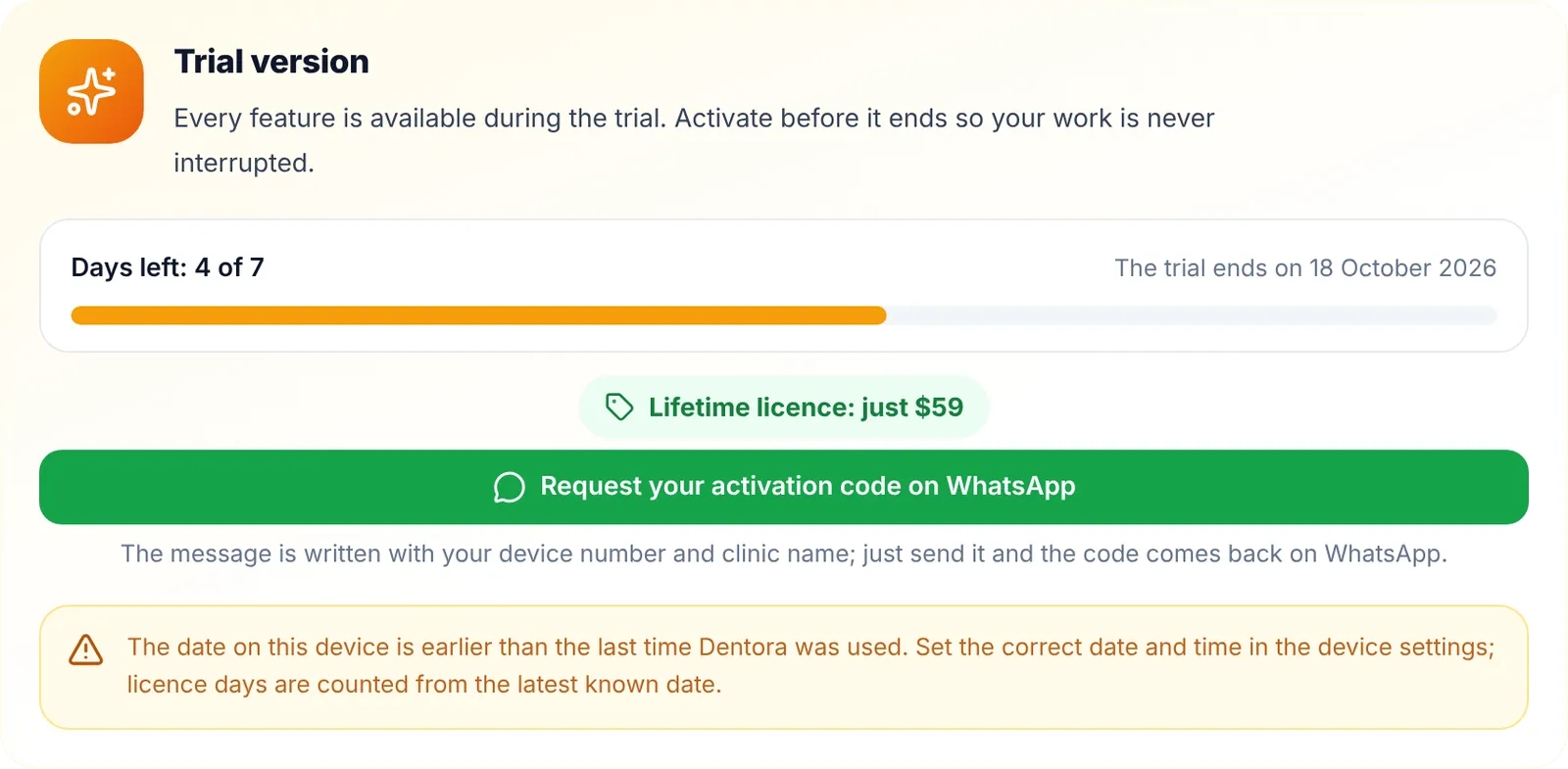
What happens after the seven days? Dentora becomes read-only: you see and print everything and save a backup, but adding and editing stop until you activate. Nothing is deleted, and everything comes back when you activate, on any day. See The trial and what comes after.
What is the difference between a licence key and an activation code? A key is 16 characters the seller sells without your device number; it is activated online, once, inside Dentora (version 1.1.0 and later) or on the website page. A code is 112 characters the seller makes for your device number, and works offline. Both go in the same field in Settings → Licence. See Activating with a licence key and Activating with a code made for your device number.
I bought a new computer. Does my licence work on it? A licence is for one device, and the new device has a new device number: move your data with a backup, then contact the seller to move the licence. A used key is refused on a second device with “This key is already activated on another device”. See One device.
I reinstalled Dentora. Do I need a new licence? No. On Windows the activation stays as it is through an update or a reinstall. On Android, if the app was uninstalled, restore your backup, then paste the seller’s message again, or enter your key, which gives the same code, in Dentora or on the website page. See One device and Activating on the website.
What is sent to the internet when I activate? Only the key and the device number, once, to dentora.raqeem.dev. Clinic and patient data are never sent, and an activation code made for your device needs no connection at all. See What is sent to the internet?.

Troubleshooting
A white screen when the app opens On Android, update “Android System WebView” and Chrome from the Play Store, then open the app again. On Windows press F5, or close Dentora and open it again; if it goes on, run the installer over the installed copy: your data stays as it is. See Installing on Android and Installing on Windows.
I forgot my PIN The admin sets a new PIN for anyone from Staff → the ⋮ menu → Set a new PIN. If the only admin forgot theirs, start on the sign-in screen: Forgot your PIN? → send the device number to the seller → paste the reset code and choose a new PIN. Five wrong PINs in a row pause the keypad for 30 seconds, so wait and try again. See Forgot your PIN? and Signing in, locking and signing out.
The date is wrong, or “The date on this device is earlier than the last time Dentora was used” Dentora takes the day and time from the device: with a wrong device date, today’s appointments show on the wrong day. Set the date and time in the Windows or Android settings, ideally automatically from the network. Dentora remembers the latest date it has seen, so setting the date back never gives trial days back or revives an ended licence. See The trial and what comes after.
I cannot install the APK on Android Allow “Install unknown apps” for the app you opened the file from, and in the Google Play Protect warning choose “Install anyway”. Android 7.0 or later and enough free space are needed, and if the download stopped before it finished, download the file again. To update, install the file over the existing app; never uninstall it. See Installing on Android.
Windows blocks the installer On the “Windows protected your PC” screen click “More info”, then “Run anyway”; it shows because the app is new to Windows. If there is no such button, do not turn Windows security off: message the seller. See Installing on Windows.
The app is slow with many photos and X-rays Files are kept at their original size on the device, up to 25 MB each, and go into the backup, so backups grow and restores take longer. Upload pictures at a sensible size (a phone camera photo rather than a high-resolution scan) and keep free space on the device; Dentora warns before an upload when space is short. See Files, images and clinical notes.
I need help. What should I send? Message whoever sold you Dentora on WhatsApp, with the version and device number from Settings → About, what happened, and a picture of the screen. See About. The same page’s Help card opens this guide and the video tutorials.