Skip to content
Dentora
العربية
  1. Home
  2. User guide
  3. Finding your way around

Finding your way around

Get to know the screen and reach anything in seconds: the sidebar, quick search, the New button, notifications, language and appearance, shortcuts, and how Dentora looks on a phone.

Watch this topic on video
On this page
  1. The parts of the screen
  2. The sidebar and your account menu
  3. Quick search
  4. The New button
  5. Notifications
  6. On a phone or tablet
  7. Language, appearance and font
  8. Keyboard shortcuts and Windows extras

The parts of the screen

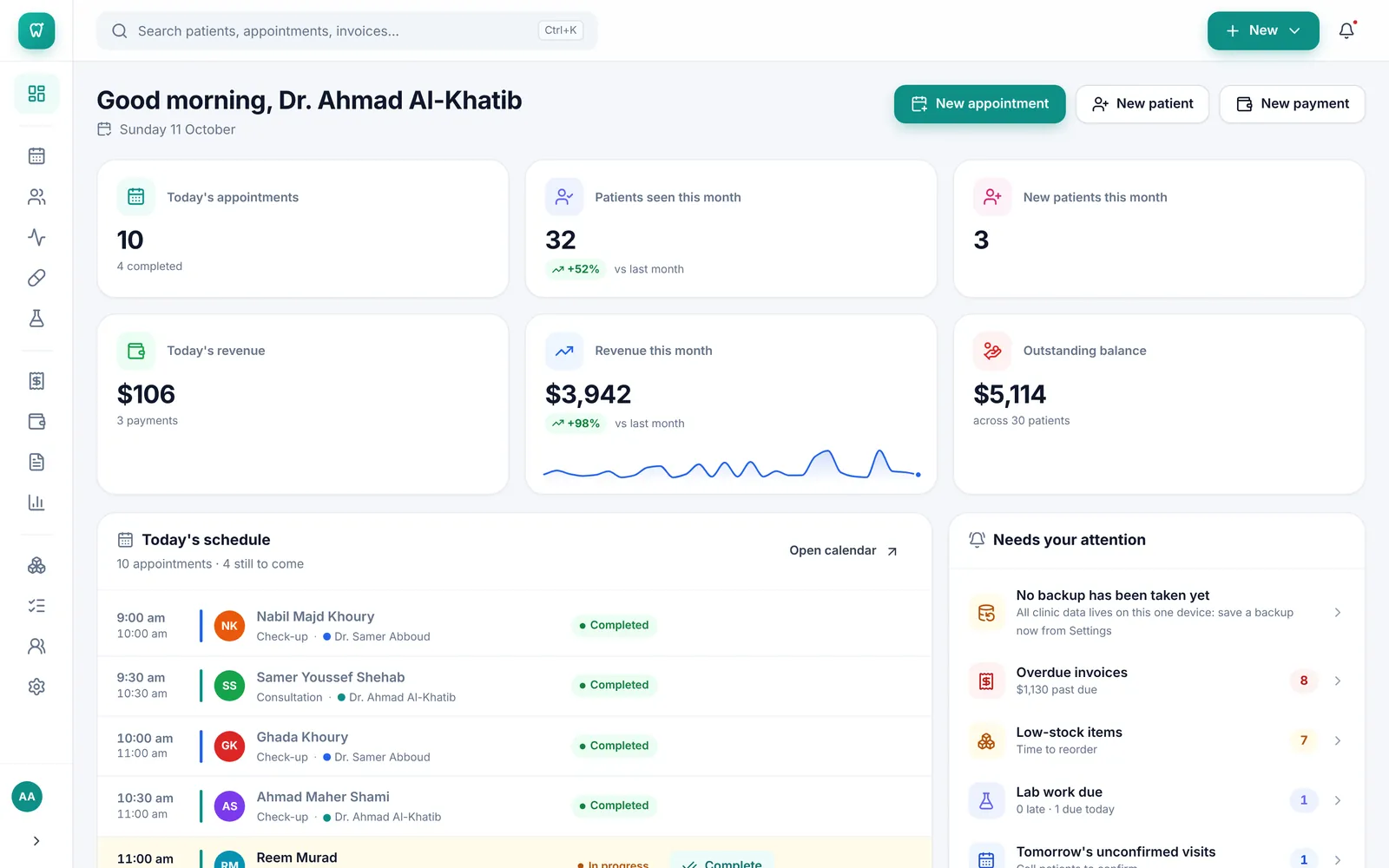
Every Dentora screen is built from the same parts, so you get used to it quickly: a sidebar to move around, a top bar with search, adding and notifications, and the page itself in the middle.

In the Arabic interface the sidebar is on the right; in English it is on the left.

  1. Move between pages from the sidebar, for example Patients or Appointments.
  2. Find any patient, appointment or invoice from the search box at the top.
  3. Add a patient, an appointment or a payment from the New button.
  4. Open Notifications from the bell icon.
  5. Click your name at the bottom of the sidebar to open your account menu.
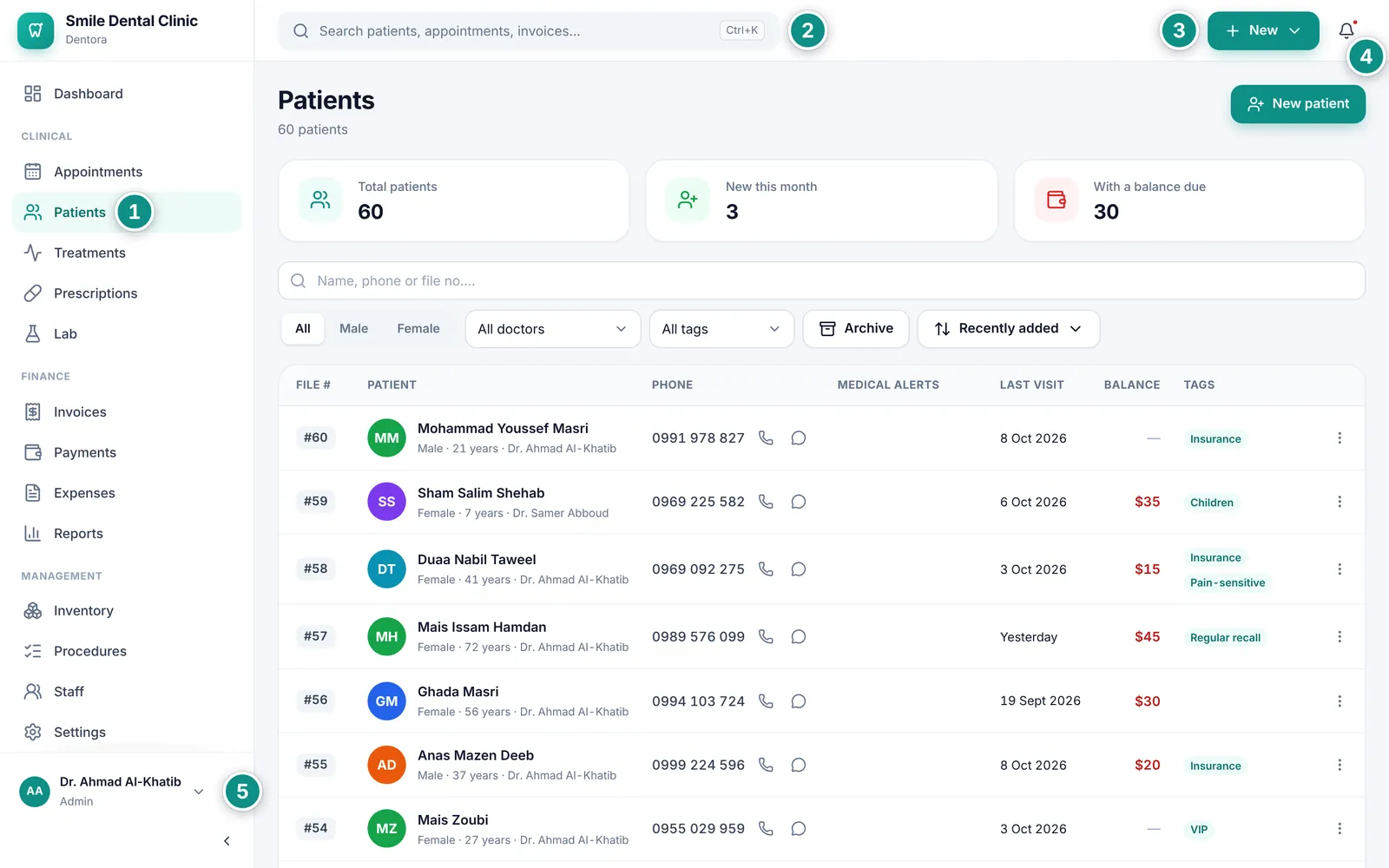
The Patients page with the sidebar and the top barEnlarge the picture
Every page has the same layout: sidebar, top bar and page.

Good to know

  • What you see in the sidebar follows your role in the clinic: pages your role may not open are simply not there. See Roles and permissions.
  • During the trial a bar at the top shows the days left and an Activate now button. When the trial is over Dentora becomes read-only: you still see, print and back up all your data, but adding and editing stop until you activate. See Licence.
  • Numbers use Western digits (0–9) in both languages.

The sidebar and your account menu

The top of the sidebar shows your clinic’s name and logo, then Dashboard. Below come three groups: Clinical (Appointments, Patients, Treatments, Prescriptions, Lab), Finance (Invoices, Payments, Expenses, Reports) and Management (Inventory, Procedures, Staff, Settings).

  1. For more room, click the arrow button at the bottom of the sidebar (Collapse menu). Only the icons stay (hover one and its name appears); click an icon to open its page. Click the arrow again to expand the sidebar.
  2. Click your name at the bottom of the sidebar to open your account menu, which also has Settings and Help (it opens this guide on Dentora’s website in your browser).
  3. Choose Lock screen when you step away, or Sign out when you finish. Either way Dentora returns to the sign-in screen, and each person signs in with their own PIN.
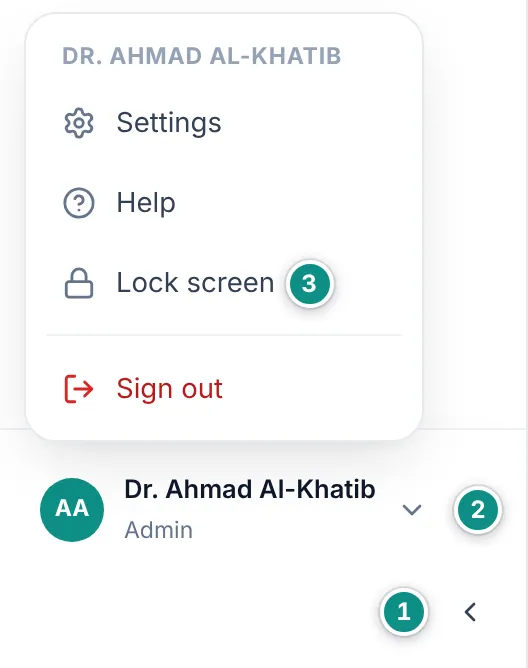
The account menu open at the bottom of the sidebar: Settings, Help, Lock screen and Sign outEnlarge the picture
The sidebar collapsed to icons onlyEnlarge the picture

Good to know

  • Dentora remembers on this device whether you left the sidebar collapsed or expanded.
  • Dentora also locks itself after a period without use: 15 minutes unless the admin changes it. See Auto-lock.

Quick search

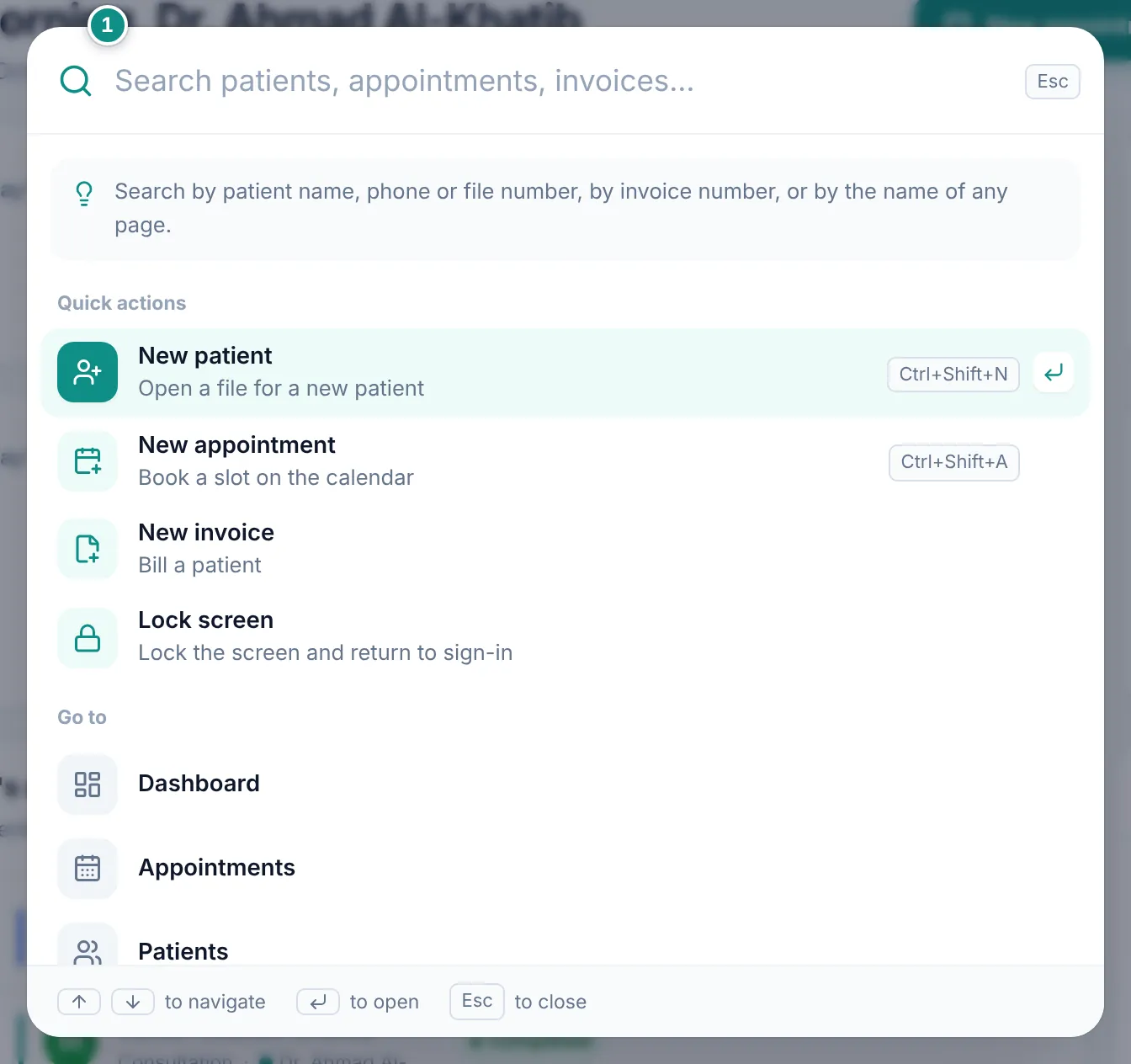
The search box takes you anywhere in seconds: a patient by name, phone number, file number or national ID, an upcoming appointment by patient or doctor, an invoice by its number or the patient’s name, or any page by its name.

  1. Click the search box at the top of the screen, or press Ctrl+K anywhere.
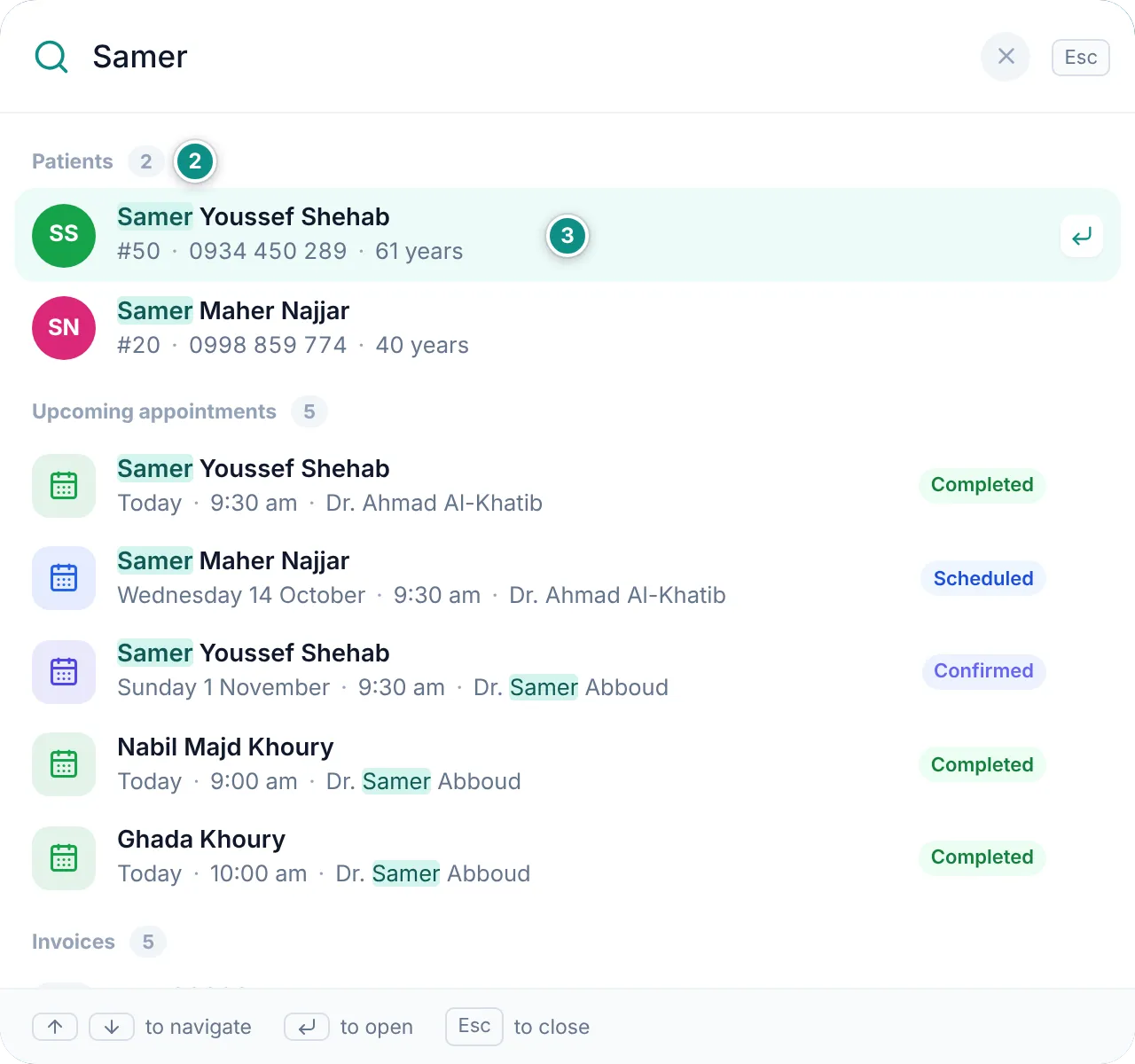
  2. Type part of a name or a number. Results are grouped under Patients, Upcoming appointments, Invoices and Go to.
  3. Move through the results with ↑ and ↓ and press Enter to open the highlighted one, or click any result.
  4. Press Esc to close the search.
The quick search window before typing: quick actions and page linksEnlarge the picture
Search results grouped into patients and upcoming appointmentsEnlarge the picture

Good to know

  • Before you type, the window shows your Recent searches (Clear history empties them), Quick actions (New patient, New appointment, New invoice, Lock screen, as your role allows) and Go to with every page. While Dentora is read-only, Lock screen is the only quick action left.
  • Search understands Arabic-Indic digits (٠–٩), and Ctrl+K works even with an Arabic keyboard layout.
  • Only appointments from today on are listed. For past visits, open the patient’s file or Appointments.
  • Archived files show in the results with an Archived badge.
  • Everyone searches only what their role allows.

The New button

The New button in the top bar adds what you need most every day, from whatever page you are on, without leaving it.

  1. Click New.
  2. Choose New patient, New appointment or New payment.
  3. Fill in the form and save it. After you save a new patient, their file opens straight away.
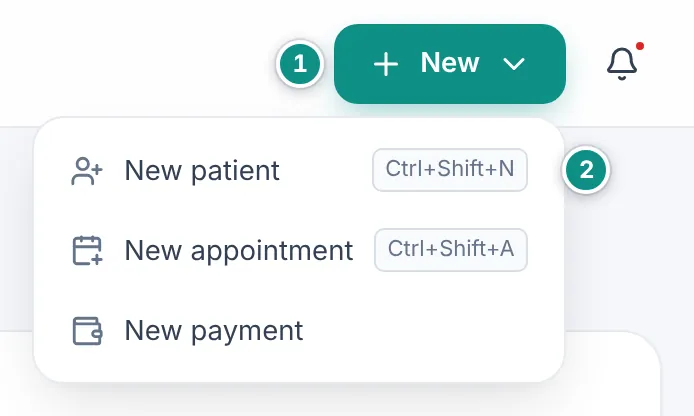
The New button menu: New patient, New appointment and New paymentEnlarge the picture

Good to know

  • Two keyboard shortcuts: Ctrl+Shift+N for a new patient and Ctrl+Shift+A for a new appointment.
  • New payment is there only for roles allowed to handle invoices.
  • On a phone a small + button takes its place and opens a new appointment directly.
  • The button is hidden while Dentora is read-only.

Notifications

The bell gathers what needs your attention today. A red dot appears on it when something important comes up that you have not seen yet: an overdue invoice, an item running low, late lab work, an unconfirmed appointment for tomorrow, or a backup that is due.

Depending on your role, the panel lists Backup, Remaining today, Unconfirmed for tomorrow, Lab work, Overdue invoices, Inventory (shortages, and items already expired or expiring within 60 days), Birthdays today and Due for a recall (last visit over 6 months ago and nothing booked).

  1. Click the bell: the Notifications panel opens at the side of the screen.
  2. Click any alert to go to its page: the appointment in the calendar, the invoice, the inventory or the patient’s file.
  3. Each unconfirmed appointment for tomorrow has a speech-bubble icon (Remind on WhatsApp) that opens a ready-made message to the patient, when their phone number is on file. Birthdays have the same icon (Send greetings on WhatsApp).
  4. When a group is long, click View all to open its full page.
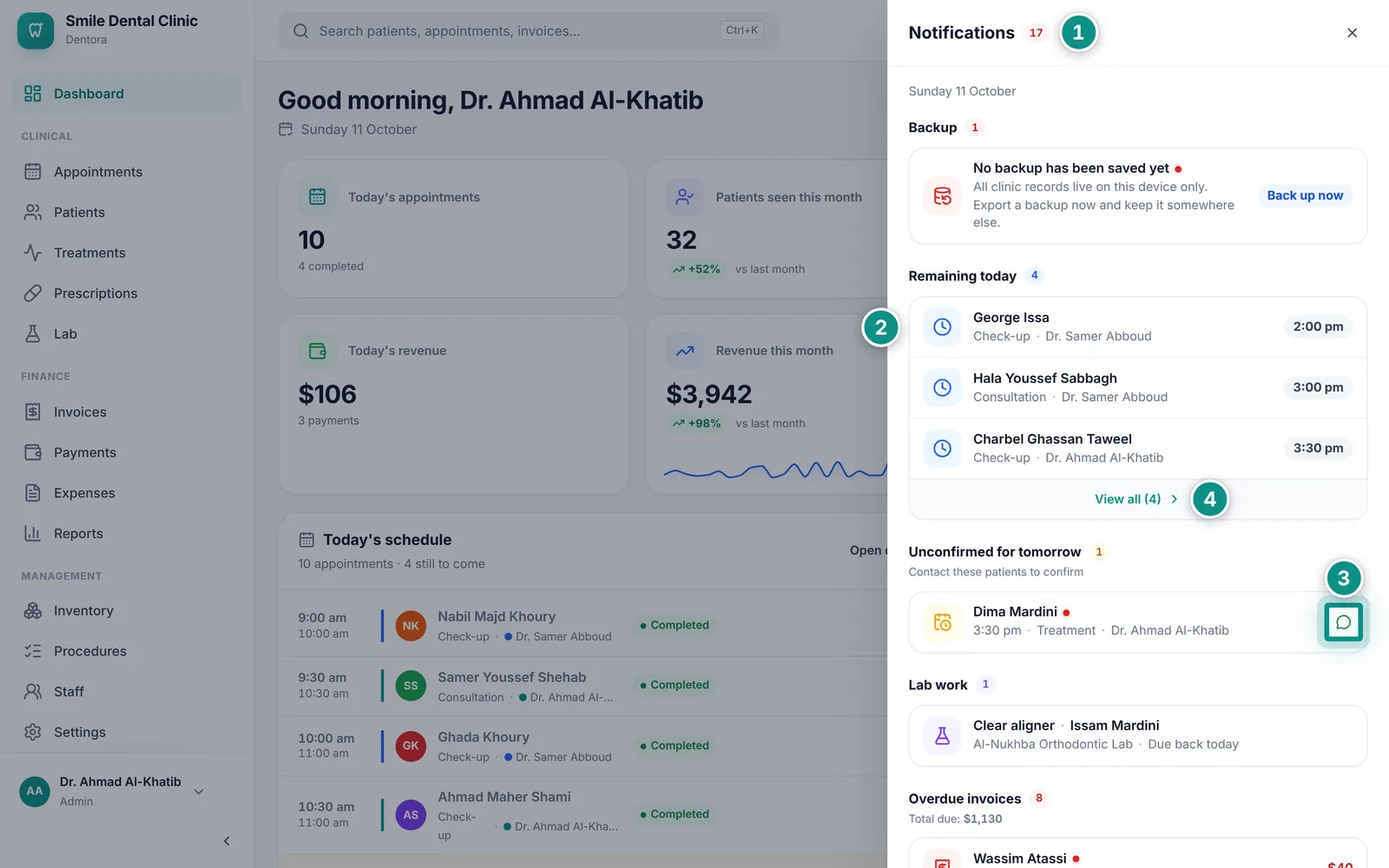
The Notifications panel open: backup, today’s appointments and tomorrow’s unconfirmed onesEnlarge the picture

Good to know

  • The red dot goes away once you open the panel, and comes back when something new and important appears.
  • An invoice counts as overdue once its due date has passed or, without a due date, 30 days after it was issued.
  • The backup reminder shows when the clinic has at least one patient and no backup was ever saved, or the last one is 7 or more days old. Only the admin gets its red dot, which comes back every week until a backup is saved; clicking its row, marked Back up now, takes the admin to the backup page. Everyone else is asked to tell the admin.
  • WhatsApp messages open in the WhatsApp app on Android, and in the browser on Windows, where you continue in WhatsApp Web or the WhatsApp desktop app. Your clinic’s country code is added to local numbers for you. See Clinic details.

On a phone or tablet

On a phone, and on a tablet held upright, the sidebar gives way to a bar at the bottom of the screen. All pages and features stay the same.

  1. Use the bottom bar to move between Dashboard, Appointments, Patients and Invoices.
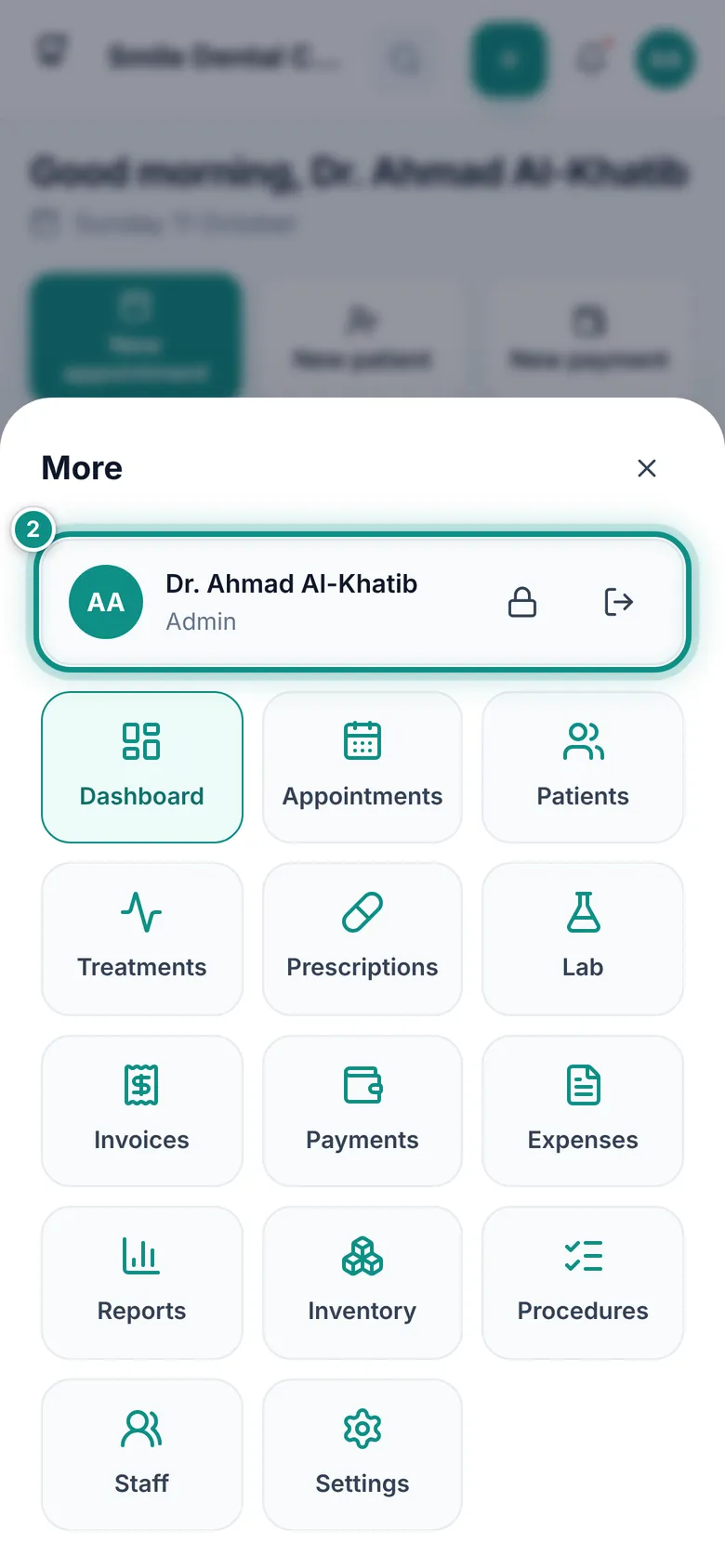
  2. Tap More to reach every other page. Its top row shows your name with buttons to lock the screen and sign out.
  3. In the top bar: the magnifier searches, + books a new appointment (on a tablet you get the full New button and its menu instead), the bell opens notifications, and the circle with your initials opens your account menu.
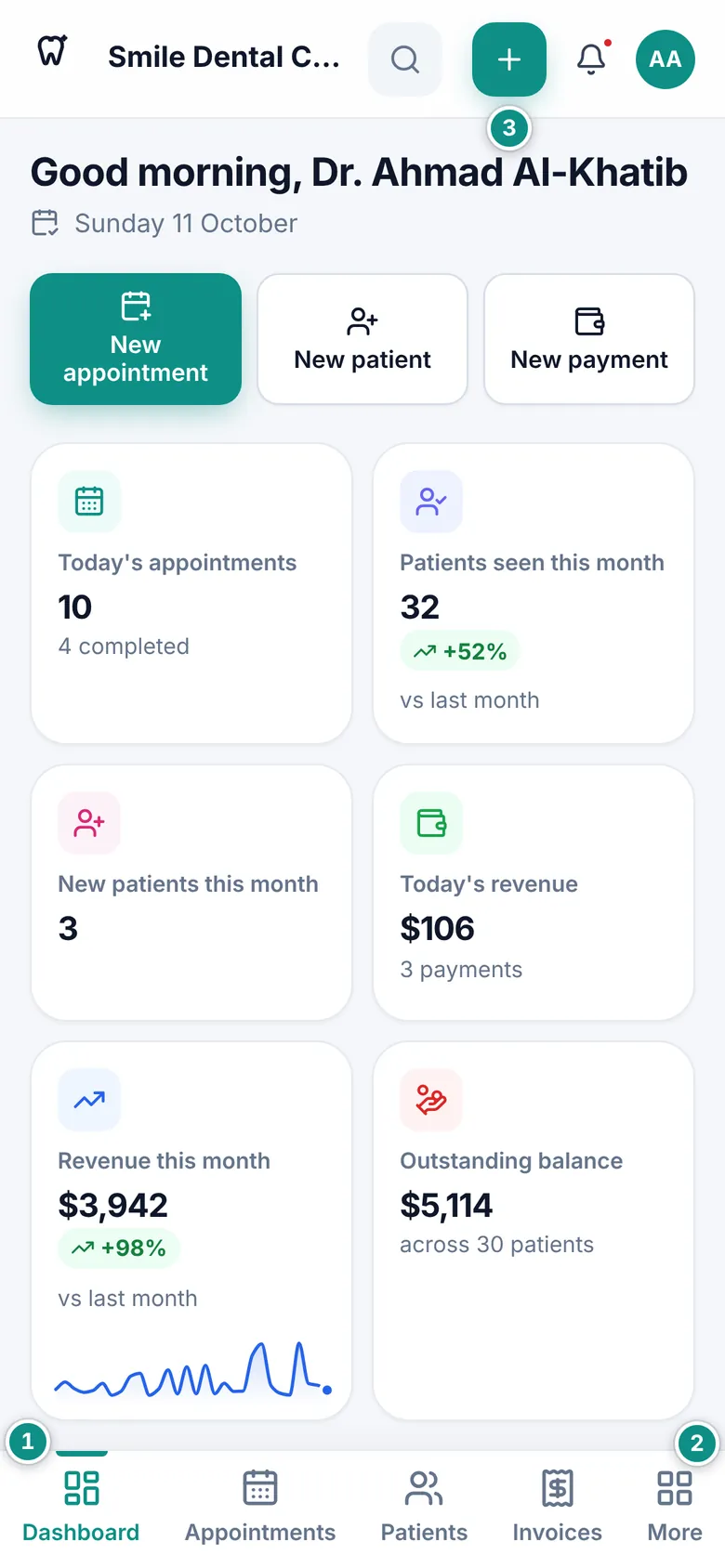
Dentora on a phone: the top bar and the bottom barEnlarge the picture
The More window on a phone, with every page and the lock and sign-out buttonsEnlarge the picture

Good to know

  • Android’s Back button first closes any open window or menu, then goes back a page. On the dashboard it sends the app to the background instead of closing it.
  • The bottom bar hides while you type, to leave room for the keyboard.
  • A tablet held sideways may show the computer layout, with the sidebar.
  • On Windows the same layout appears when the Dentora window is narrower than about 1024 pixels, for example when it is snapped to half the screen. Widen the window to get the sidebar back.
  • The bottom bar and the More window only show the pages your role allows.

Language, appearance and font

Dentora works in Arabic, right to left, or in English, left to right, with a light or a dark appearance. The whole interface changes at once, printed invoices and prescriptions included.

  1. Open Settings → Preferences.
  2. Under Interface language choose العربية or English.
  3. Under Appearance choose Light or Dark.
  4. Under Interface font pick the font that is easiest on your eyes.
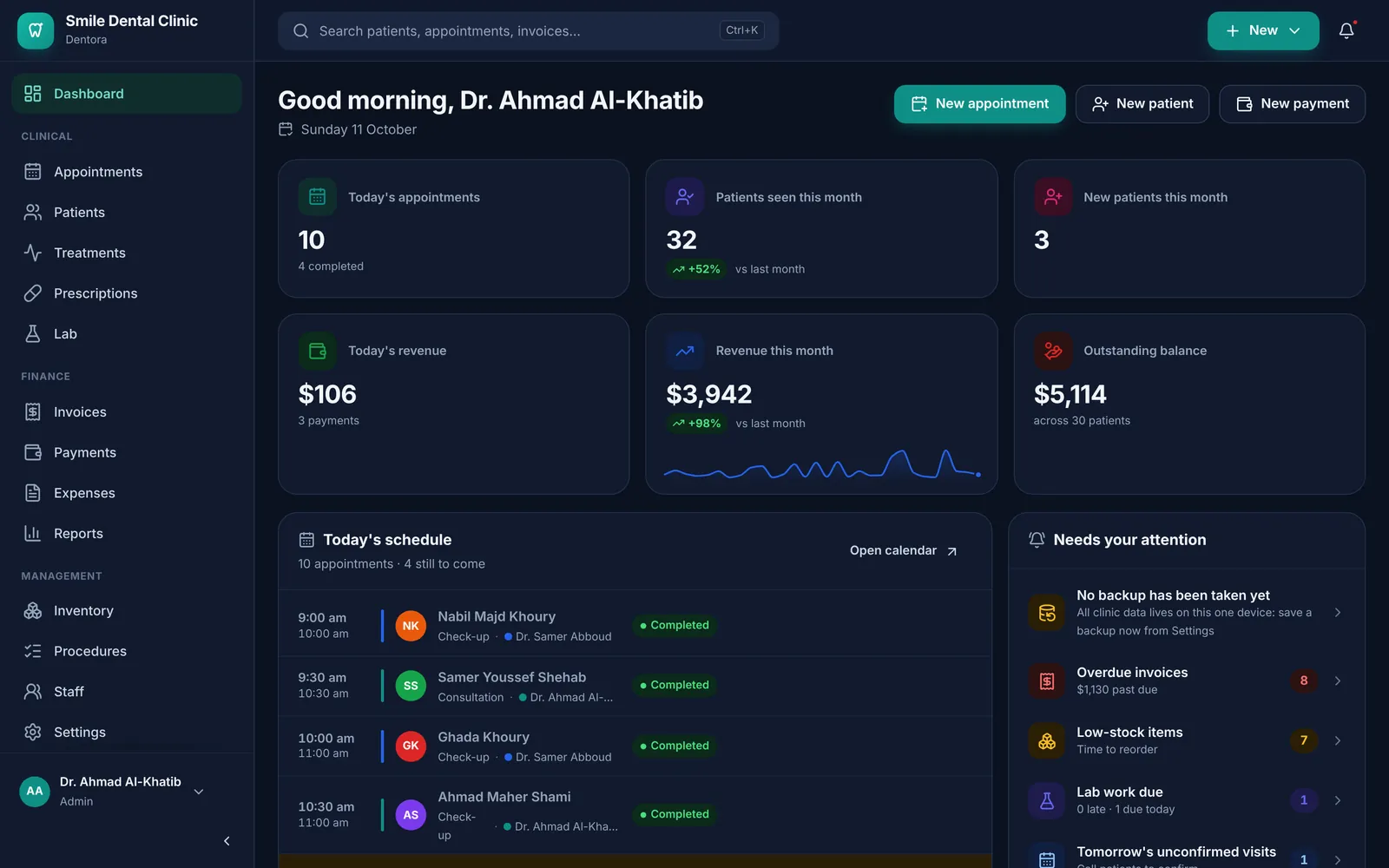
The dashboard in the dark appearanceEnlarge the picture

Good to know

  • Language and appearance apply to everyone in the clinic and only the admin changes them. The font belongs to this device alone, and anyone can change it.
  • Light is the clearest for daily clinic work; dark is easier in dimly lit rooms.
  • More in Language, month names, font and appearance.

Keyboard shortcuts and Windows extras

On a computer the keyboard saves a lot of time: Ctrl+K for quick search, Ctrl+Shift+N for a new patient, Ctrl+Shift+A for a new appointment, and Esc to close the open window.

The Windows app adds: Ctrl with + to zoom in, Ctrl with - to zoom out and Ctrl with 0 for the normal size, or Ctrl with the mouse wheel; Dentora remembers the zoom. F11 toggles full screen, F5 reloads the page, and Alt shows the menu bar.

Right-clicking inside any field offers cut, copy, paste and select all, handy for pasting a message you received on WhatsApp.
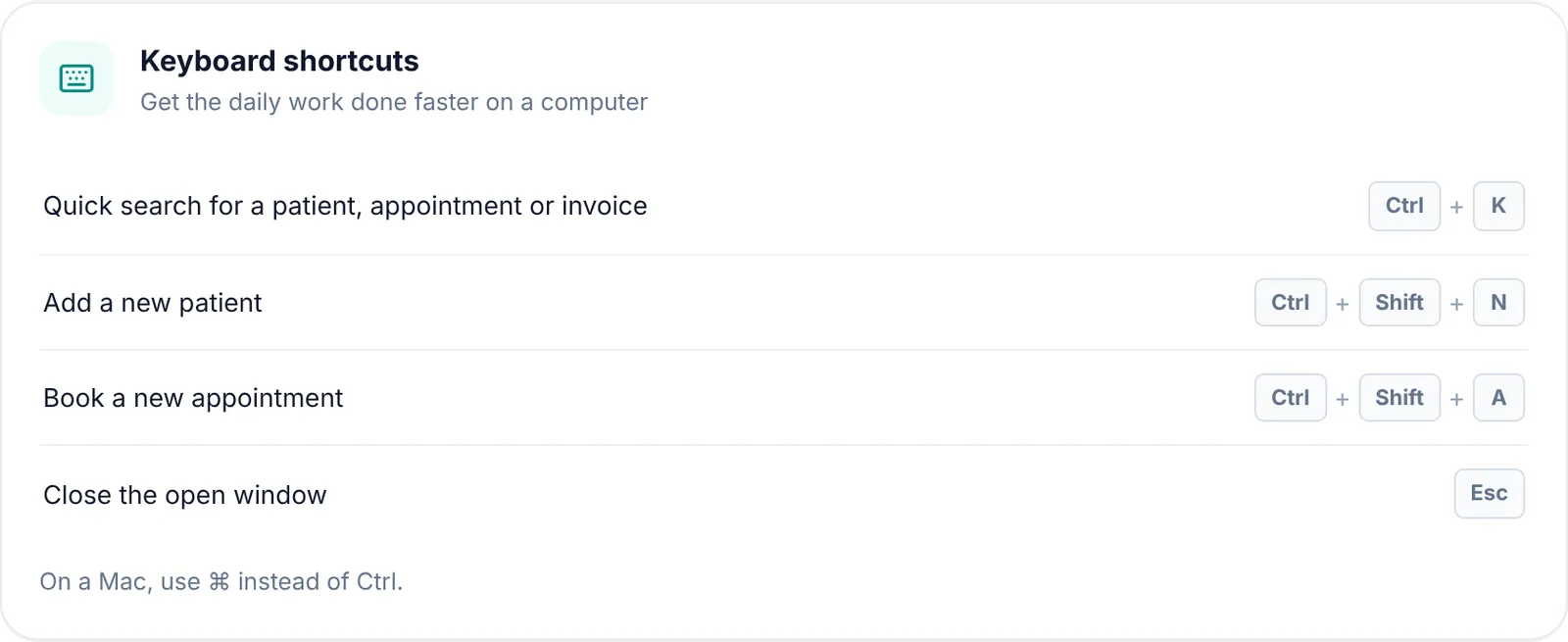
The keyboard shortcuts list in AboutEnlarge the picture

Good to know

  • These shortcuts work even with an Arabic keyboard layout.
  • The shortcut list is also in Settings → About.
  • On the sign-in screen, type your PIN straight on the keyboard and press Enter to sign in.
Previous topicGetting startedNext topicThe dashboard

Need help?

If you did not find your answer here, message us on WhatsApp and we will help.

WhatsApp+963 996 489 504

On this page

  1. The parts of the screen
  2. The sidebar and your account menu
  3. Quick search
  4. The New button
  5. Notifications
  6. On a phone or tablet
  7. Language, appearance and font
  8. Keyboard shortcuts and Windows extras

Back to top

All topics

  1. Getting started
  2. Finding your way around
  3. The dashboard
  4. Patients
  5. Dental chart
  6. Appointments
  7. Treatments and treatment plans
  8. Invoices and payments
  9. Prescriptions
  10. Dental lab
  11. Inventory
  12. Expenses
  13. Reports
  14. Settings
  15. Staff and permissions
  16. Backup and moving your clinic
  17. Licence and activation
  18. Questions and answers

© 2026 Dentora. All rights reserved.

HomeUser guideVideosActivate a licencePrivacy policyTerms of use